
Sharing Sites
Yerd can publish a local site to the public internet over a secure HTTPS URL, so you can share work in progress, test a webhook, or demo from your own machine without deploying anything. It works through Cloudflare Tunnel (cloudflared): the connection is outbound-only - no inbound ports, no router config, no sudo - which fits Yerd's rootless model.
Sharing is opt-in and per-site. A site is never reachable from the internet until you explicitly share it.
There are two tiers, and you can use either:
- Quick share - one click gives you a random
https://<name>.trycloudflare.comURL. No Cloudflare account, no config, nothing to set up. Best for a quick demo or a one-off webhook test. - Named tunnels - a stable hostname on your own Cloudflare-managed domain (e.g.
app.example.com), backed by a tunnel on your account. Best when you want a URL that doesn't change.
Anyone with the URL can reach your site
Sharing serves your local site as-is. While a tunnel is up, anyone who has the URL can load it - there's no auth in front. Stop the tunnel when you're done. Quick-tunnel URLs are unguessable but public; named hostnames are whatever you choose.
Prerequisite: cloudflared
Sharing needs the cloudflared binary. If one is already on your PATH (version 2023.3.0 or newer), Yerd detects and uses it automatically - nothing to install. Otherwise Yerd downloads it on demand (the official Apache-2.0 static build, verified by checksum) and installs it under the daemon's data directory - it isn't bundled, and it never touches your system unless you already had one. No Cloudflare account is required for quick share.
yerd tunnel installIn the desktop app, the Share page offers an Install cloudflared button the first time you visit. If Yerd is using a cloudflared it found on your PATH, the badge is annotated (system) and a Use Yerd's bundled version instead button lets you switch to the managed, auto-updating copy.
Quick share
The fastest way to put a site online:
yerd tunnel share app        # -> https://calm-river-1234.trycloudflare.com
yerd tunnel status           # see live tunnels and their URLs
yerd tunnel stop app         # take it back offline
Yerd points cloudflared at the site's own loopback listener and rewrites the Host header to the site's .test name, so the request routes through the same proxy that serves the site locally - a secure (HTTPS) site is served over HTTPS, a plain site over HTTP, transparently. You don't configure any of that.
Quick tunnels are ephemeral: the URL changes every time you start one, and they're torn down when you stop them or the daemon exits. They carry Cloudflare's quick-tunnel limits (around 200 concurrent requests, and no server-sent events), so they're for development, not production traffic.
"Server IP address could not be found"?
That's your machine's DNS resolver, not Yerd - some ISP resolvers don't resolve fresh *.trycloudflare.com names. Point your system DNS at 1.1.1.1 or 8.8.8.8 and the URL resolves immediately.
Named tunnels
Named tunnels publish a site at a stable hostname on a domain you already manage in Cloudflare. They need a one-time browser login to your Cloudflare account.
Yerd uses a single consolidated tunnel that serves every site you expose (one process, one config), so you create the tunnel once and then just toggle which sites are live.
1. Connect your Cloudflare account
yerd tunnel loginThis opens your browser to authorize Yerd for one of your Cloudflare zones. The account certificate is stored in the daemon's data directory and never leaves your machine. After login, Yerd resolves and shows the authorized domain (e.g. example.com) so you know which hostnames you can use.
2. Create a tunnel
yerd tunnel create my-tunnelYerd supports one named tunnel at a time; remove it before creating another.
3. Expose a site
Map a site to a public hostname on your authorized domain, then publish:
yerd tunnel set-host app app.example.com   # route DNS + record the mapping
yerd tunnel publish                        # bring the tunnel up for all exposed sites
yerd tunnel list                           # show the tunnel, exposed sites, and domain
set-host creates the proxied DNS record on your Cloudflare zone and remembers the mapping. publish starts the consolidated tunnel; unpublish stops it.
To stop exposing a site:
yerd tunnel set-host app --clear # remove the mappingIn the desktop app
The desktop app has a Share page under the Integrations group in the sidebar (also reachable from the command palette). When any site is shared, the sidebar item shows a count.
The Shared sites card has a searchable site picker and a Share button for quick tunnels, plus a live table of active tunnels with copy-URL and stop controls.
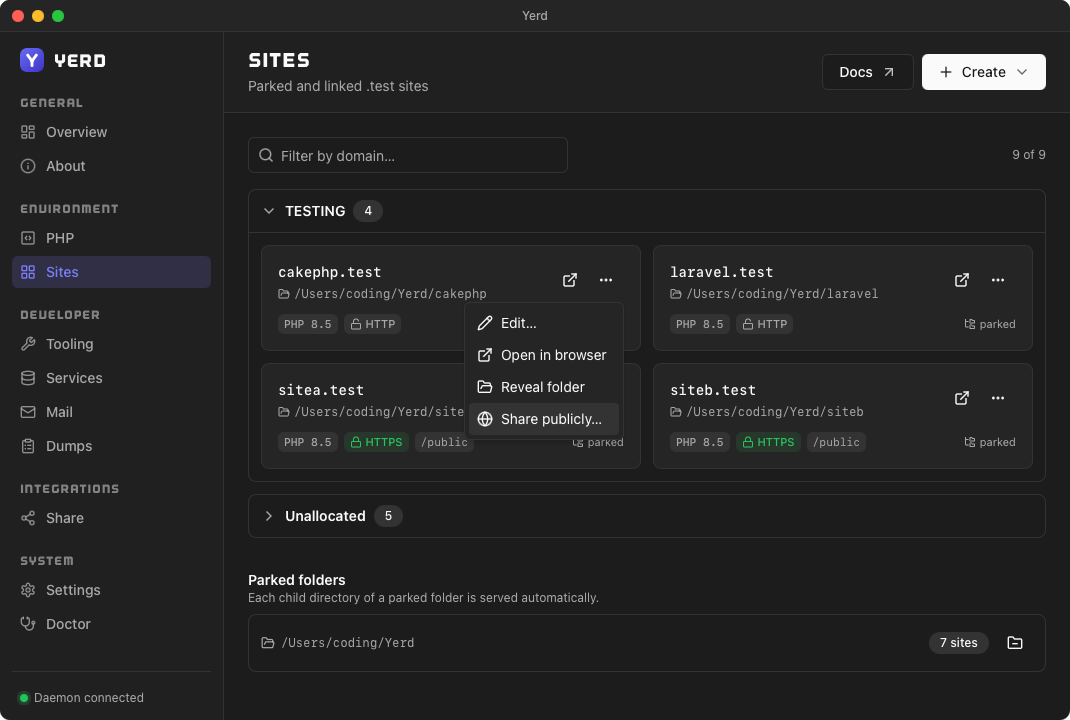
Each site's
⋯menu on the Sites page also has a Share publicly… shortcut that jumps straight to sharing that site, without going to the Share page first: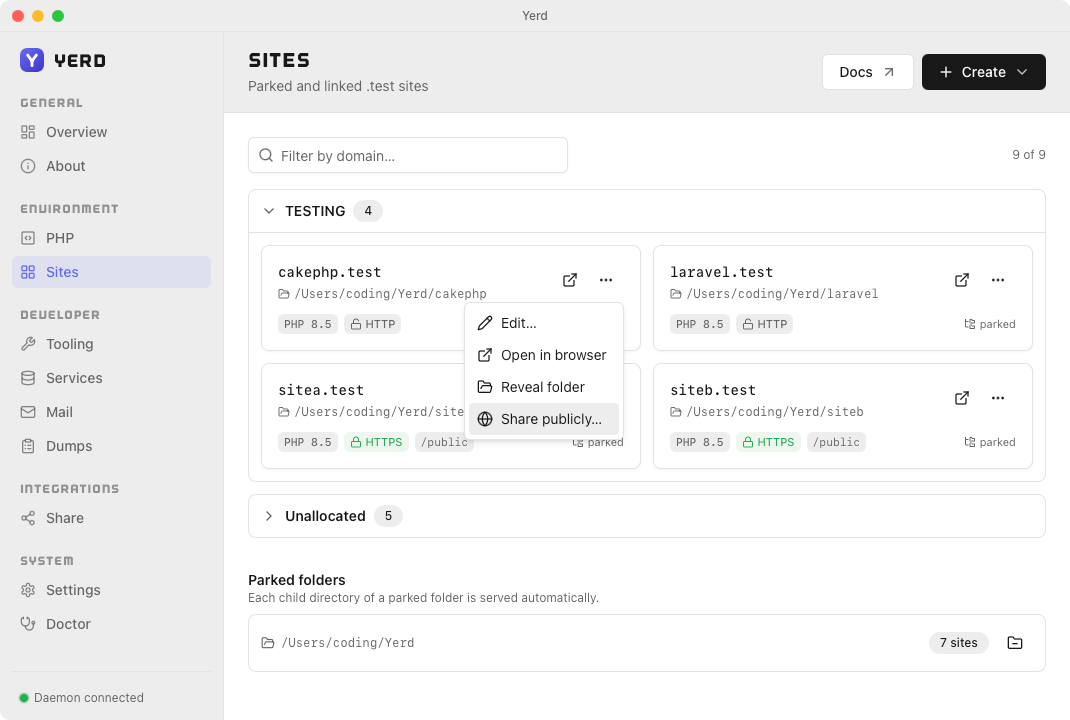
The Named tunnels card walks you through connecting your Cloudflare account, creating the tunnel, and choosing which sites to expose. Each site's hostname box is pre-filled with
{site}.{your-domain}. Exposing a site brings the tunnel up automatically and removing the last one takes it back down, so you rarely touch the lifecycle yourself; a Start/Restart button is there to recover the tunnel if itscloudflaredprocess dies.
Removing a named tunnel
yerd tunnel delete my-tunnelThis stops the tunnel, deletes it from your Cloudflare account, removes its local credentials, and clears the exposed-site mappings, leaving a clean slate. The DNS records you created with set-host/route are not removed - delete those in the Cloudflare dashboard if you no longer want them.
How it stays safe
cloudflaredruns unprivileged, as the daemon user. Sharing never invokes the privileged helper and never opens a listening port - the tunnel dials out.- The account certificate and per-tunnel credentials live in a daemon-owned
0700directory; the desktop app never reads them. - Nothing is shared until you ask, and quick tunnels are torn down on daemon shutdown.
Command reference
See the yerd tunnel CLI reference for every command and flag. The persisted mappings live in the [tunnel] section of the config file.