
Getting Started
This guide takes you from a clean machine to your first site live at https://my-app.test, using the Yerd desktop app - the recommended, GUI-first way to run Yerd.
Yerd runs entirely as your user. sudo shows up in exactly two non-ongoing places: installing the system package (standard for any .deb/.pkg.tar.zst/.rpm), and a single, optional, one-time privileged setup step that the app walks you through. Day-to-day use never touches root.
Supported platforms
Yerd ships a single desktop app for macOS (Apple Silicon) and Linux (Debian/Ubuntu .deb for x86-64 and arm64, an Arch .pkg.tar.zst for x86-64, and a Fedora .rpm for x86-64 and arm64). The daemon, the yerd CLI, and the privileged helper are all bundled inside it - there is nothing else to install. PHP itself is not bundled - Yerd downloads prebuilt static PHP builds on demand once you pick a version, so the install stays tiny and fast.
Apple Intel not supported
Intel (x86-64) Macs are not supported at this time. macOS builds target Apple Silicon (arm64) only.
Install
Grab the latest stable release from the releases page:
| Platform | Download | Install |
|---|---|---|
| macOS (Apple Silicon) | Yerd_MacOS_AppleSilicon_v<ver>.dmg | open, drag Yerd to Applications |
| Linux · Debian/Ubuntu (x86-64) | Yerd_Linux_x86_64_v<ver>.deb | sudo apt install ./Yerd_Linux_x86_64_v<ver>.deb |
| Linux · Debian/Ubuntu (arm64) | Yerd_Linux_Arm64_v<ver>.deb | sudo apt install ./Yerd_Linux_Arm64_v<ver>.deb |
| Linux · Arch (x86-64) | Yerd_Linux_x86_64_v<ver>.pkg.tar.zst | sudo pacman -U ./Yerd_Linux_x86_64_v<ver>.pkg.tar.zst |
| Linux · Fedora (x86-64) | Yerd_Linux_x86_64_v<ver>.rpm | sudo dnf install ./Yerd_Linux_x86_64_v<ver>.rpm |
| Linux · Fedora (arm64) | Yerd_Linux_Arm64_v<ver>.rpm | sudo dnf install ./Yerd_Linux_Arm64_v<ver>.rpm |
Arch Linux
Remove any leftover /usr/bin/yerd from the old v1 (Go) project first - pacman won't install over a file it doesn't own - and pacman -Syu before installing so the bundled GUI's WebKit/GTK libraries match your system.
If you are upgrading from Yerd v2.0.3 or earlier, in-app update cannot see this release, so reinstall once by hand with the same sudo pacman -U ./Yerd_Linux_x86_64_v<ver>.pkg.tar.zst command from the releases page; your settings and sites are preserved, since it is a normal package upgrade, and in-app updates work again from this version on.
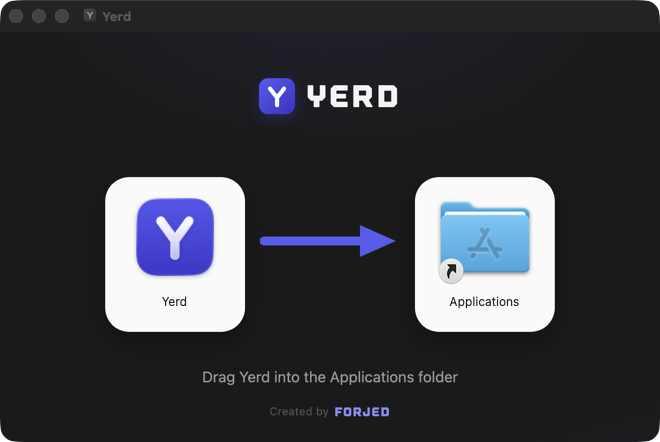
The macOS .dmg installer window - drag Yerd onto Applications to install.
On macOS that makes setup essentially drag-and-drop: drag Yerd to Applications and launch it. On Linux the package puts yerd on your PATH automatically. Everything else below happens inside the app.
Prefer the terminal, or building from source?
Everything in this guide has a yerd CLI equivalent - see the CLI Reference. The app comes with the CLI bundled: open Settings → Terminal CLI and click Install on macOS (the Linux package puts it on PATH automatically). To build and run from source instead, see Building from Source.
First launch: the onboarding journey
The first time you open Yerd on a fresh machine, it greets you with a short, guided onboarding journey instead of dropping you straight into the dashboard. It walks you through the handful of one-time steps that turn a clean install into a working .test environment: starting the daemon, installing a PHP version, pointing Yerd at your projects, and granting the OS privileges for HTTPS and ports 80/443.
Every step except the daemon install has a Skip for now, and you can move Back at any point - nothing you skip is lost, it just lives on its normal page in the app. Following it end to end gets you from install to serving sites in a couple of minutes.
Step 1 - Install the daemon
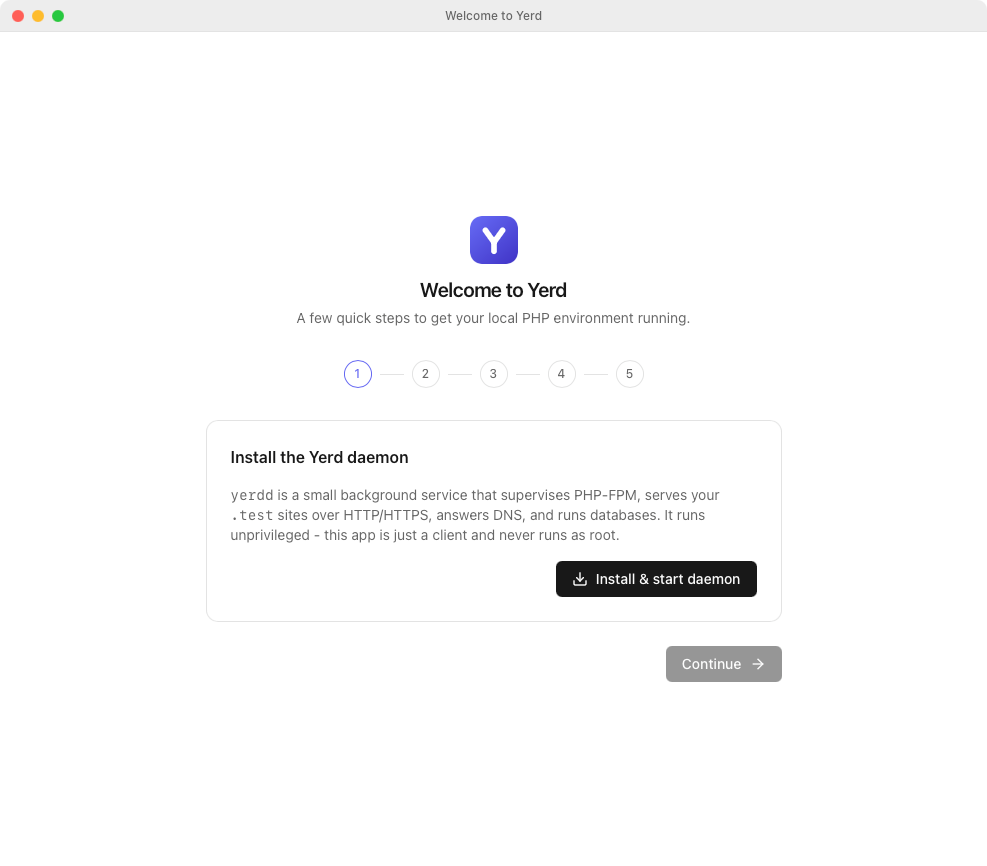
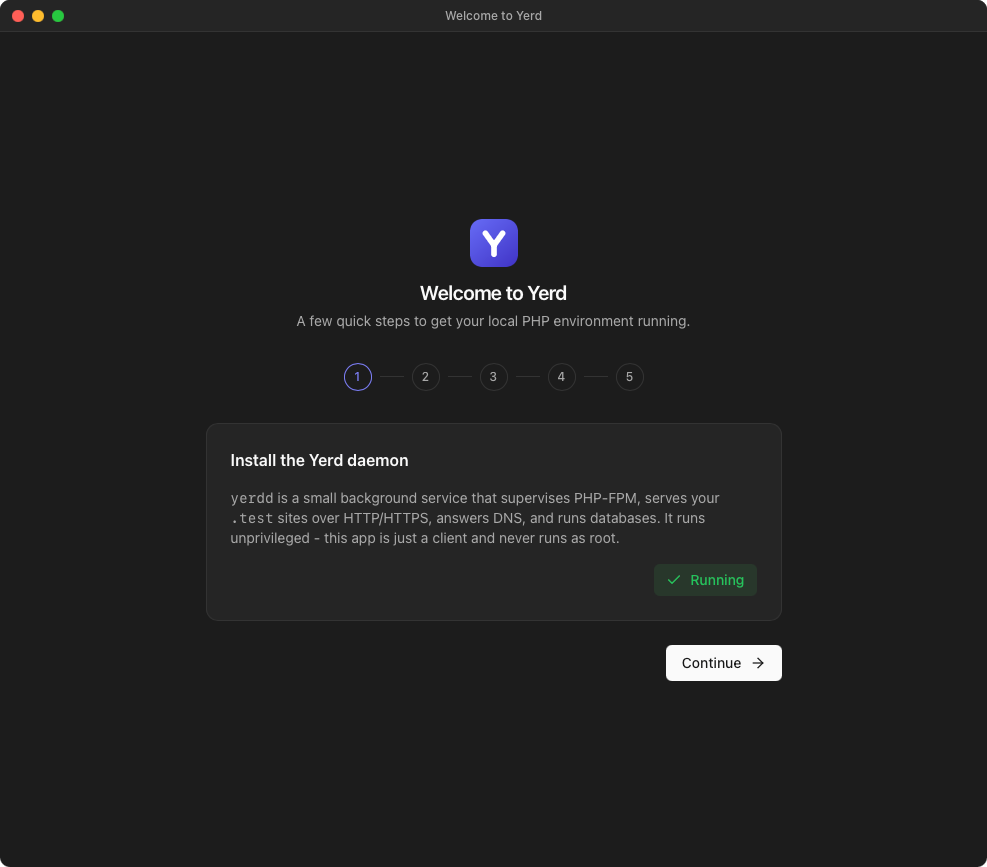
The journey opens by introducing yerdd, the small background service that does all the real work - it supervises PHP-FPM, serves your .test sites over HTTP/HTTPS, answers DNS, and runs databases. The app is just a client of it and never runs as root.
Click Install & start daemon. The button keeps spinning until the daemon actually connects, then turns into a green Running badge and Continue unlocks. This is the one required step - everything after it is skippable.
Installing the daemon here also sets sensible login defaults: the daemon and the app both start at login, with the app started minimized to the tray. Change any of the three later under Settings → Start at login.
macOS background approval
On macOS the daemon registers as a background SMAppService login item (it shows as "Yerd" in System Settings → Login Items). If macOS asks you to approve it first, the step shows an Open Login Items button to take you there; once approved it connects automatically.
Step 2 - Install a PHP version
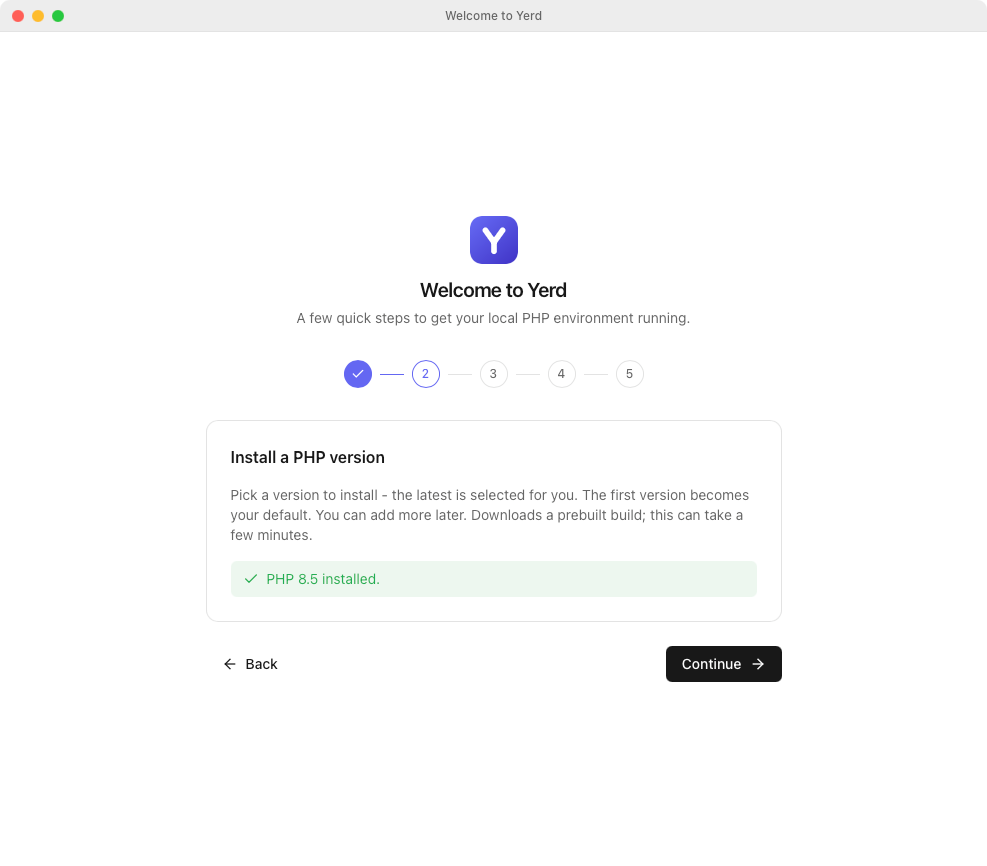
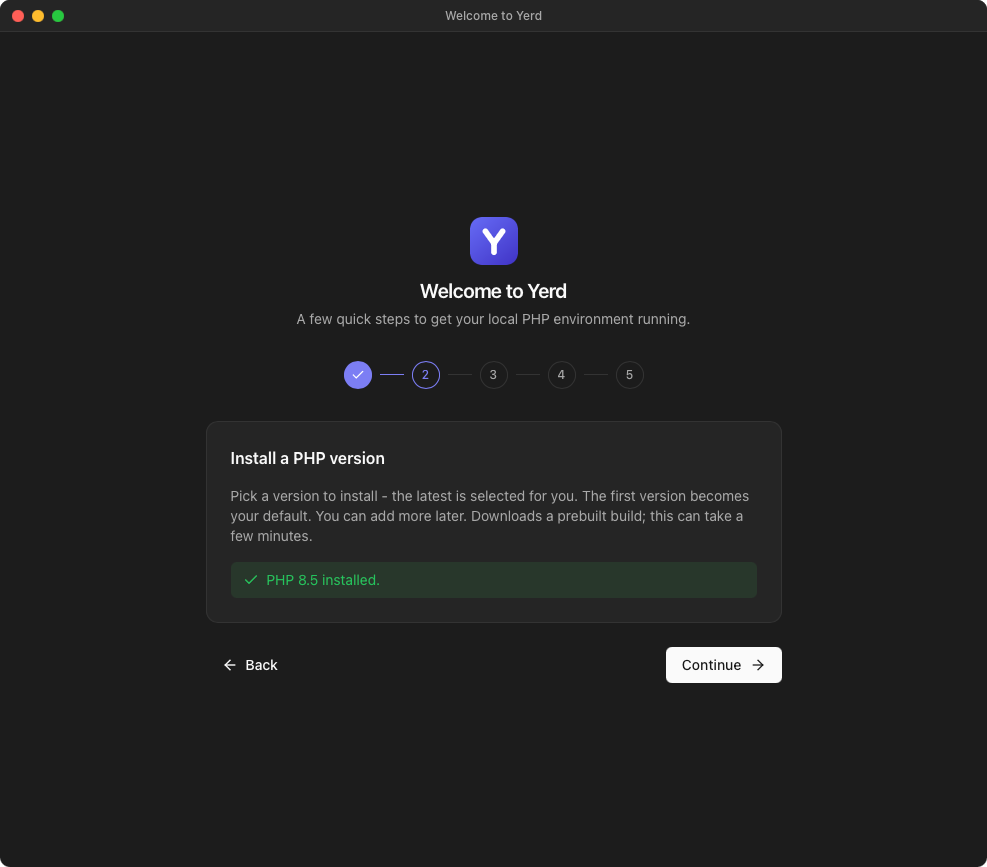
Pick a PHP version to install - the latest is selected for you, and the first version you install automatically becomes your default. It downloads a prebuilt, self-contained build (this can take a minute or two with no progress bar). Add or change versions any time later on the PHP page.
Not ready? Click Skip for now and install one later.
Step 3 - Park a projects folder
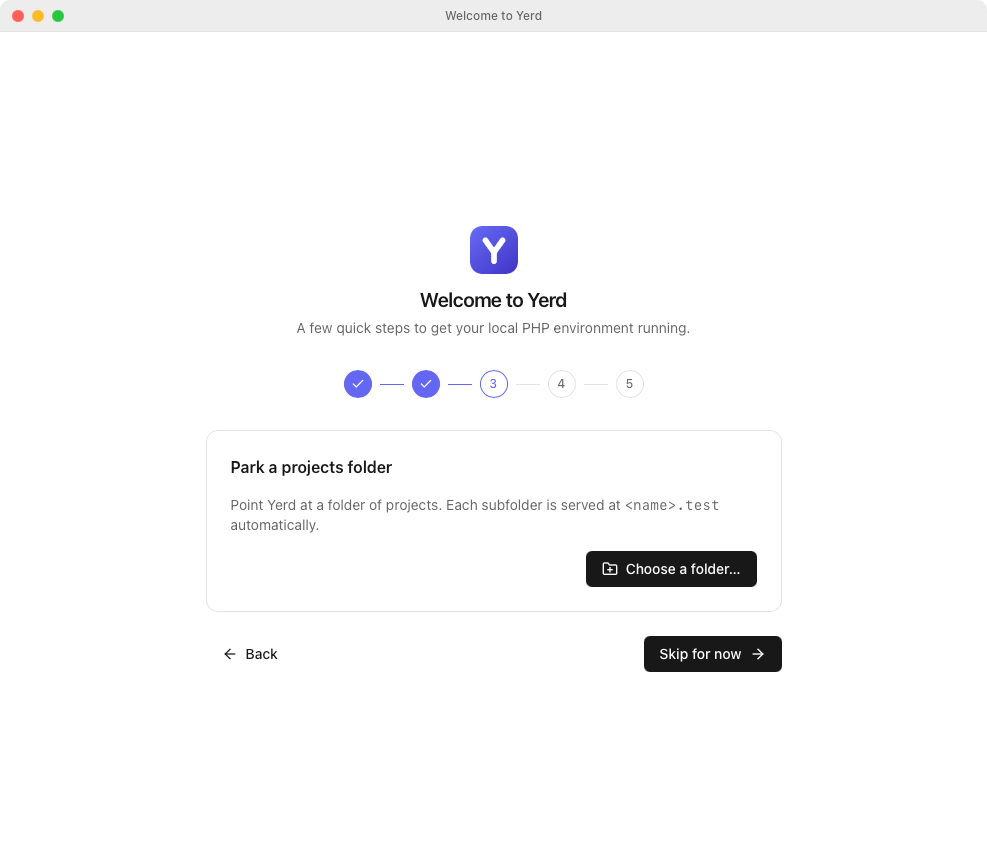
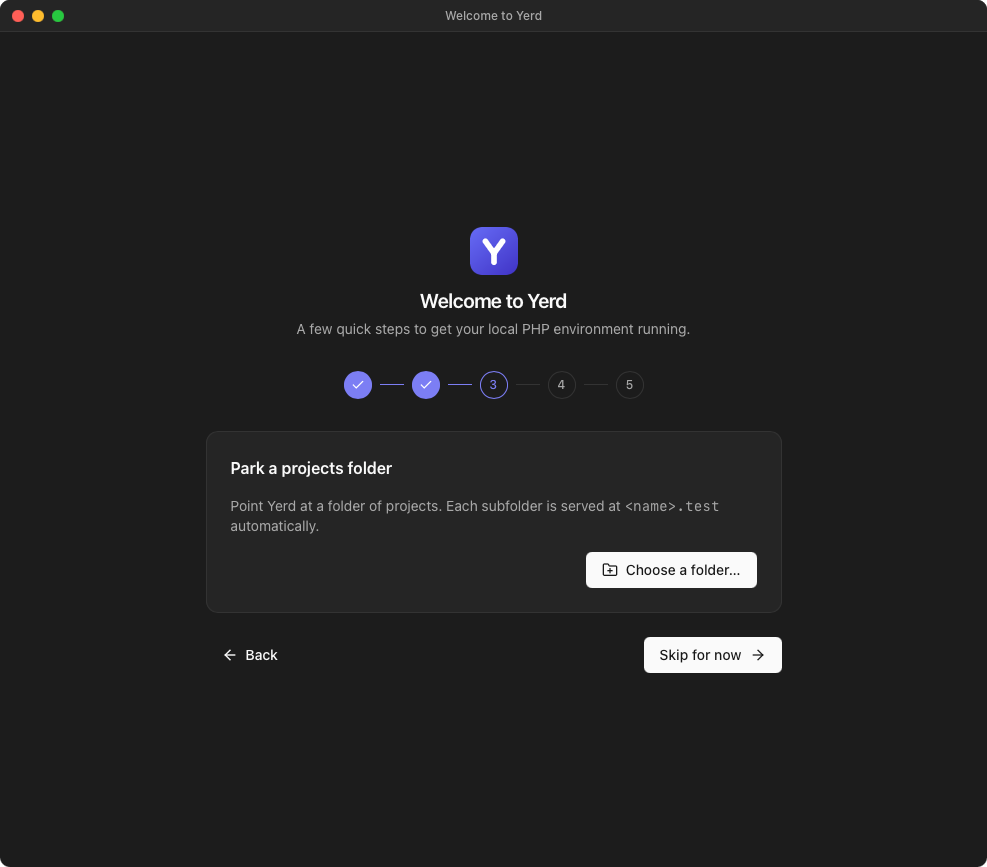
Point Yerd at a folder of projects and every subfolder is served automatically at <name>.test. Click Choose a folder…, pick your ~/Sites (or wherever your projects live), and you're done. This is the fastest way to get many sites at once; you can also link individual projects later. See Sites for the difference between parking and linking.
Skippable - park a folder whenever you're ready.
Step 4 - Trust & system access
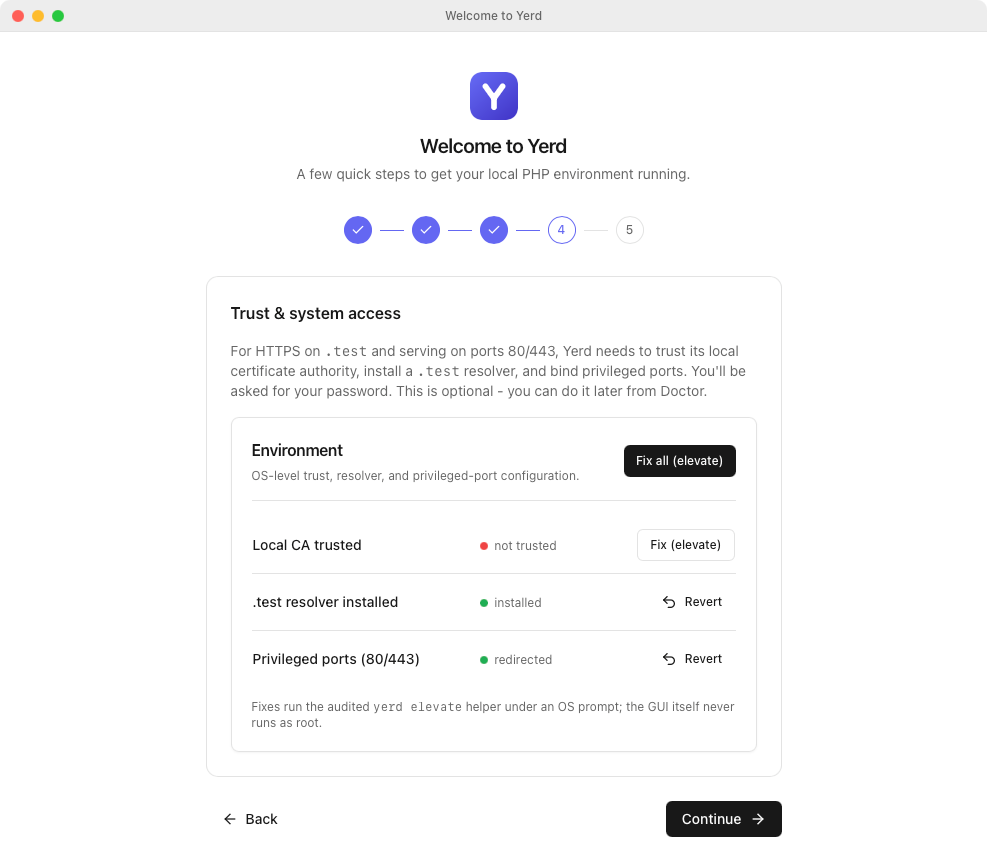
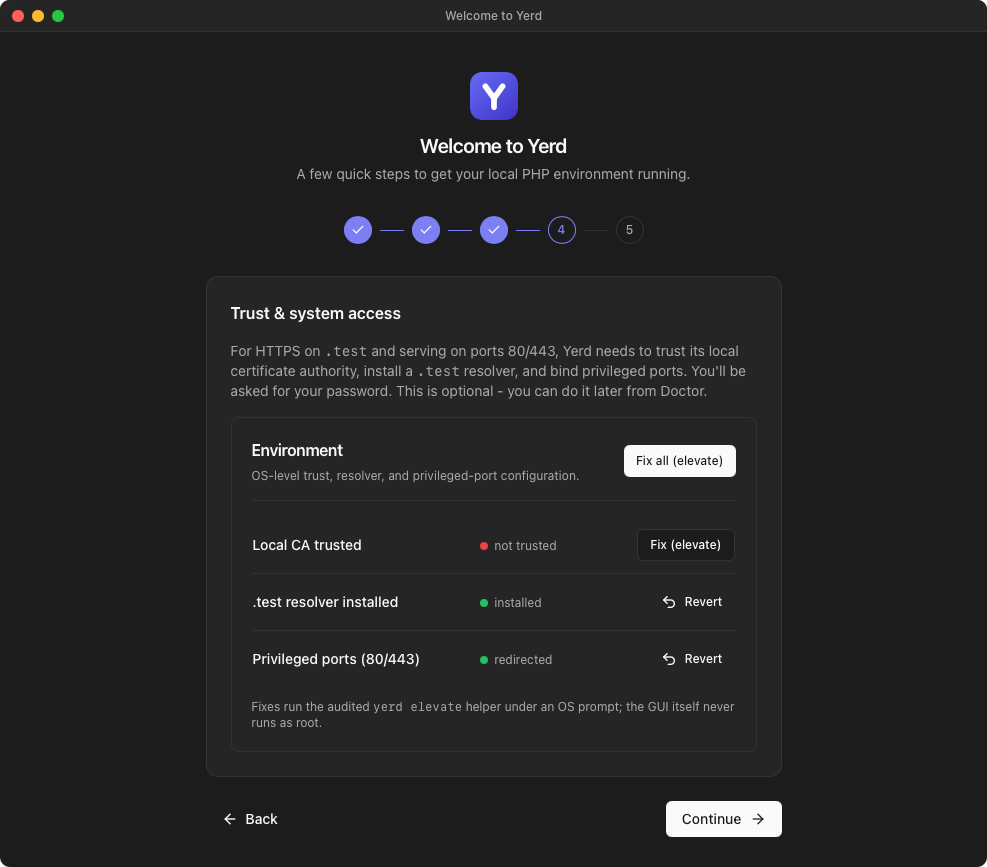
For HTTPS on .test and serving on the standard ports 80/443, Yerd needs three OS-level privileges:
- Trust the local CA so browsers accept your
.testHTTPS certificates without warnings. - Install the
.testresolver so*.testnames resolve to Yerd. - Bind privileged ports 80/443 (otherwise Yerd falls back to
8080/8443).
Use Fix all to grant them in one go - you'll be asked for your password by the OS. This step is optional; you can do it later from the Doctor page, and Yerd works on high ports until you do. For exactly what runs and why it's safe, see Elevation & Privileges.
Reverting later
Anything you grant here is reversible from Doctor (or sudo yerd unelevate). See Elevation & Privileges for details.
Step 5 - You're all set
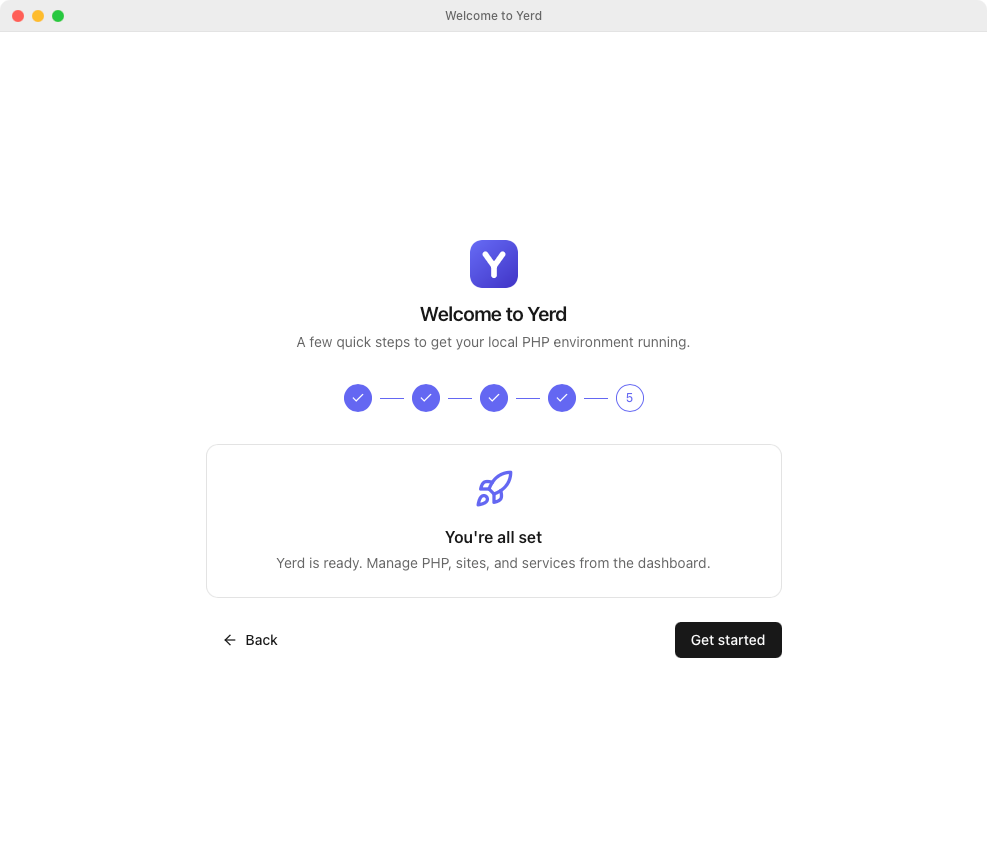
That's it. Click Get started and Yerd marks setup complete and drops you on the Overview dashboard.
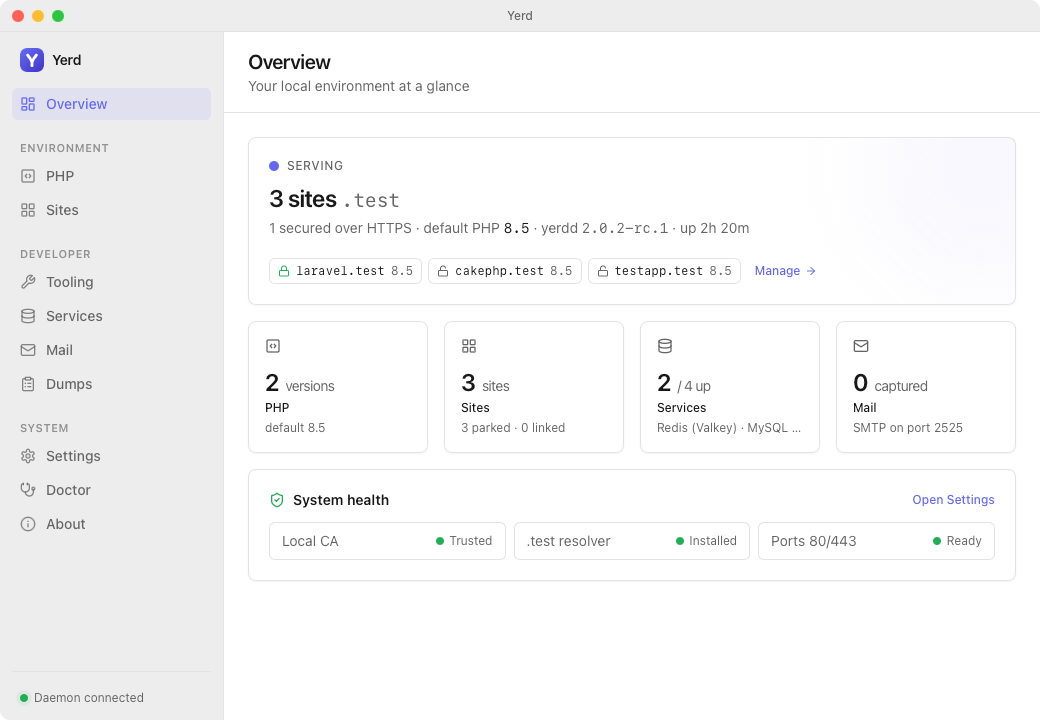
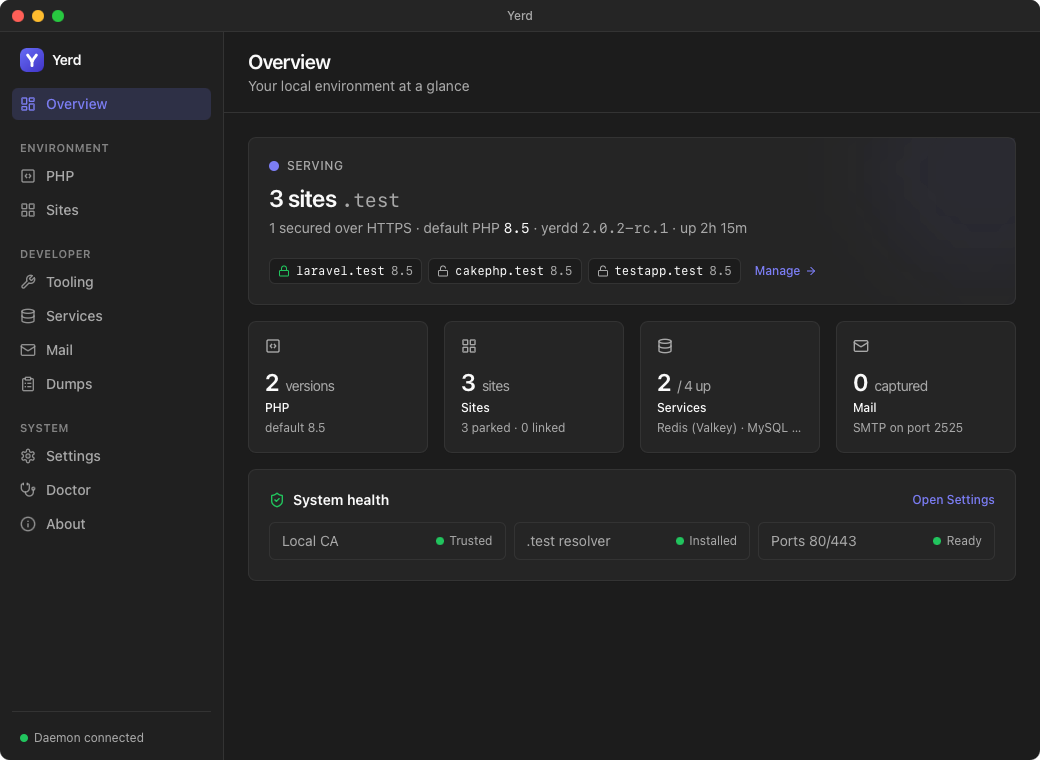
The journey won't show again on this machine - next time the app opens straight into the dashboard, or the Start Yerd screen if the daemon happens to be stopped. If you ever want to see it again, run yerd uninstall to reset to a clean state, then reopen the app. See the Features guide for the full tour of every page.
Serve, secure, and check on your first site
Whatever you skipped in the journey lives on its normal page in the app:
- PHP - install or switch versions, set a global default, or pin one site.
- Sites - park a folder, link a single project, and toggle HTTPS per site.
- Doctor - grant or revert the CA/resolver/ports privileges, and see a health check with one-click fixes.
Open https://my-app.test once it's parked or linked and secured - that's it.
Uninstall
To remove Yerd completely, run the bare uninstall command (no subcommand) from a terminal. It prompts for confirmation, then tears down the daemon, the PATH entry, all config/data/downloads, and the binaries:
sudo yerd uninstall      # recommended - also reverts the one-time elevate changes
yerd uninstall           # without root - removes everything except the elevate changes
Run it with sudo so it can also reverse the elevate system changes (the CA in your trust store, the *.test resolver, and the macOS port redirect). Those need root to undo, and they can't be undone once the binaries are gone - so without sudo, yerd warns you and prints the exact manual commands to clean them up later. Add --yes to skip the prompt in scripts. A .deb install is removed the usual way (sudo apt purge yerd); the macOS app is dragged to the Trash. Full details in the Uninstall reference.
Where to next
- Features - a tour of every page in the app.
- Sites - parking, linking, and per-site settings in depth.
- PHP Versions - pools, ini defaults, and updates.
- HTTPS & Certificates and DNS & .test Domains.
- Elevation & Privileges - exactly what the one-time setup grants.
- CLI Reference and Configuration Reference for the full surface.