
Features
Yerd is a fast, rootless, open-source local PHP environment for macOS and Linux. It serves projects on .test domains over HTTP and HTTPS, runs a different PHP version per site, and manages it all from one small daemon. No Docker, no sudo for daily work, no subscription.
The desktop app is the recommended way to run all of it: a small tray-first window over everything the CLI does. Built with Tauri v2, Vue 3, TypeScript, and Tailwind, it's a thin client of the daemon, just like the yerd CLI - every button maps to one IPC request to yerdd, so the GUI and CLI can't drift out of sync. This page is a tour of everything it can do, screen by screen; each section links to the full guide for that feature.
If you live in the terminal, the CLI is a first-class alternative. Not installed yet? See Getting Started.
The window at a glance
The sidebar opens on Overview and groups the rest:
| Group | Pages |
|---|---|
| (top) | Overview - a live dashboard of what's running |
| Environment | PHP · Sites |
| Developer | Tooling · Services · Mail · Dumps |
| Integrations | Share - publish a site over a public URL (guide) |
| System | Settings · Doctor · About |
Overview
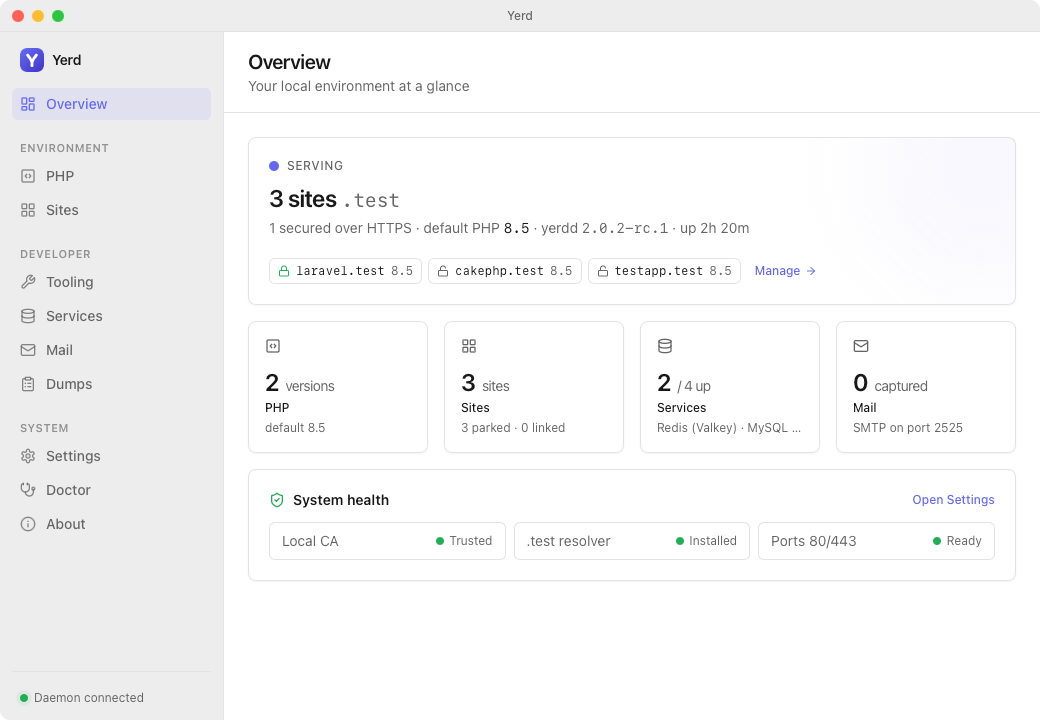
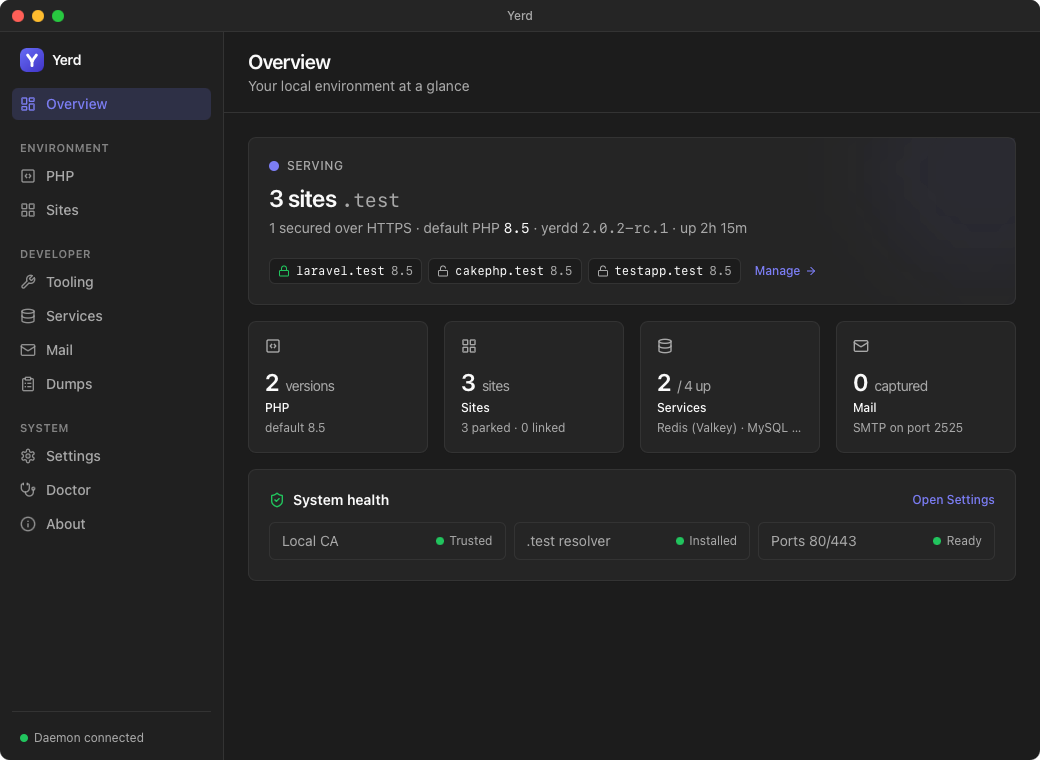
The landing dashboard. With the daemon running it shows a serving summary - the number of live .test sites (each a clickable chip that opens in your browser), stat tiles for PHP versions, sites, services, and captured mail (each links to its page), and a system-health strip (Local CA, .test resolver, privileged ports). When the daemon is down, the same surface becomes a Start Yerd hero. While the daemon is running, this page polls it every 5 seconds, so a change made from the CLI or another window shows up without a manual refresh.
Settings
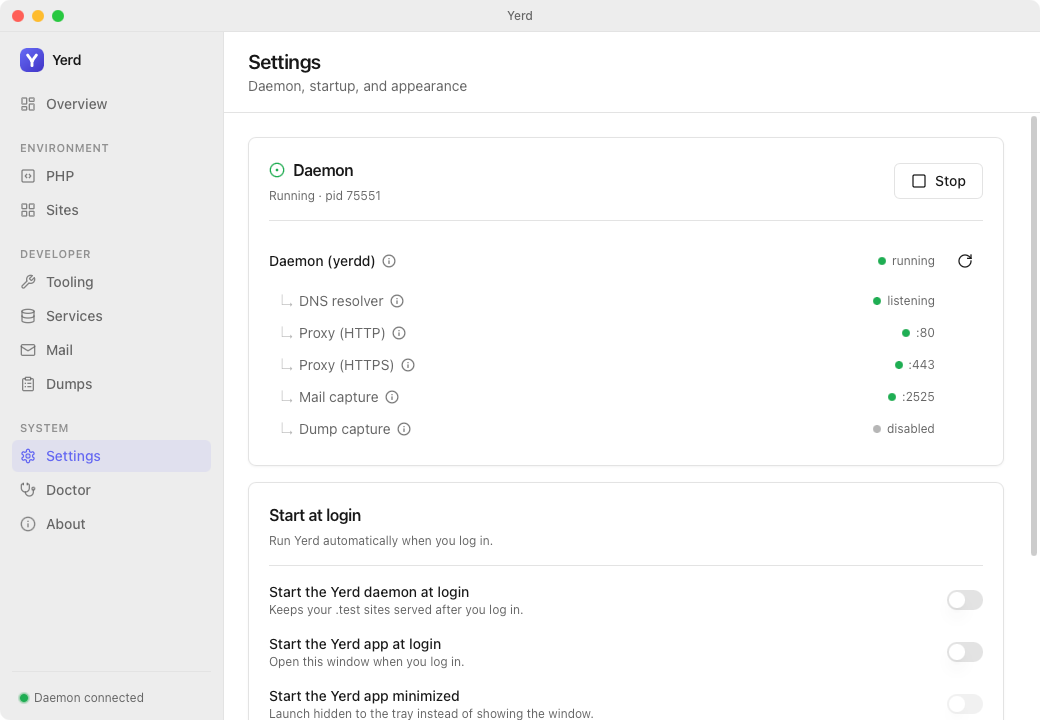
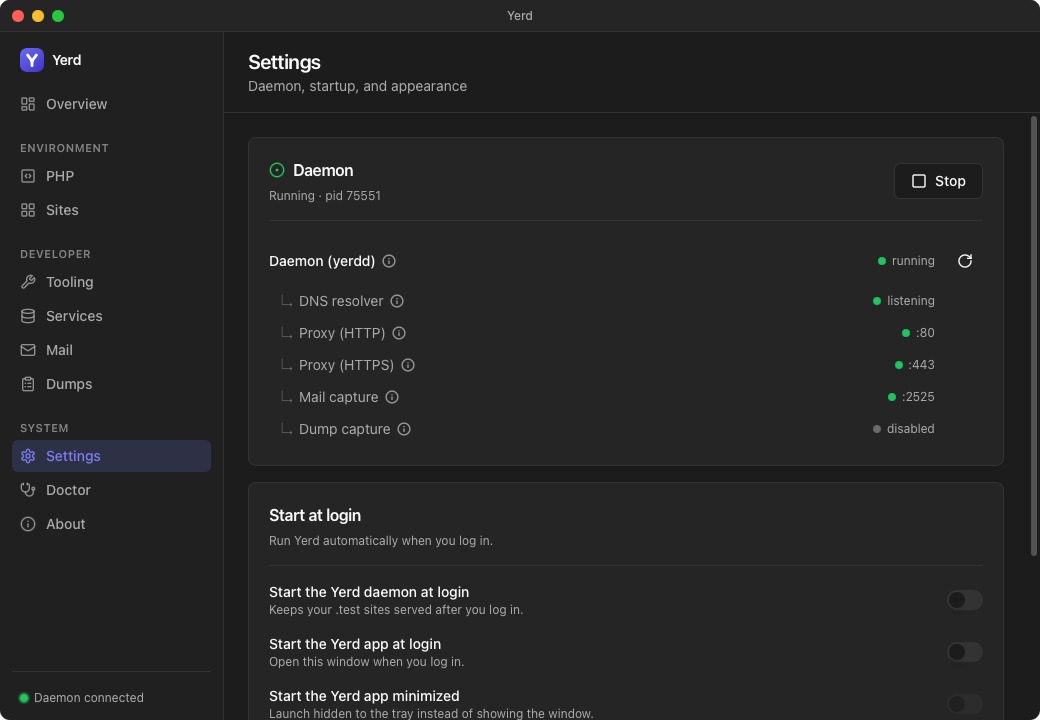
App- and daemon-level settings (one of the pages that stays usable when the daemon is down, since it can start or install it):
- Daemon. Whether
yerddis running (with pid), a Start or Stop button, and a list of the daemon's in-process subsystems - the DNS resolver, the HTTP and HTTPS proxy listeners (with bound ports, including when macOS'spfredirect carries:80/:443), Mail capture (by port), and Dump capture (by port). The daemon row has a Restart button. Start/Stop/Restart go through your per-user service manager (systemd--useron Linux, a launchd LaunchAgent on macOS), with a detached-process fallback where none exists; the same actions are in the tray menu. - Application Ports (while the daemon is running). Editable HTTP/HTTPS (the rootless fallback ports used when 80/443 need elevation), DNS, mail-capture, and dumps ports. If a port is in use elsewhere the page flags it here (site serving or
.testresolution shows as unbound) so you can pick a free one. Change a value and Save & restart validates it, saves, restarts the daemon, and rechecks. HTTP/HTTPS are locked while ports are elevated - un-elevate them on the Doctor page first. - Start at login. Three toggles - start the daemon at login, start the app at login, and start the app minimized (hidden to the tray). The daemon-at-login toggle is disabled where no per-user service manager is available.
- Terminal CLI (macOS and Linux). Installs
yerd- and your installed tools (php,composer, ...) - onto your shellPATH. On a packaged Linux installyerditself is already onPATH, so this is mainly how Linux users get the PHP/tool shims onPATHtoo. - Appearance. A System / Light / Dark theme selector; a Tray icon selector (Automatic, Light Y, Dark Y, Full icon) for the menu bar / system tray icon; and a Title bar selector (Automatic, macOS, Linux, Linux (Reversed), Windows) that forces a window-control style regardless of host platform. All three apply live and are remembered across launches.
PHP
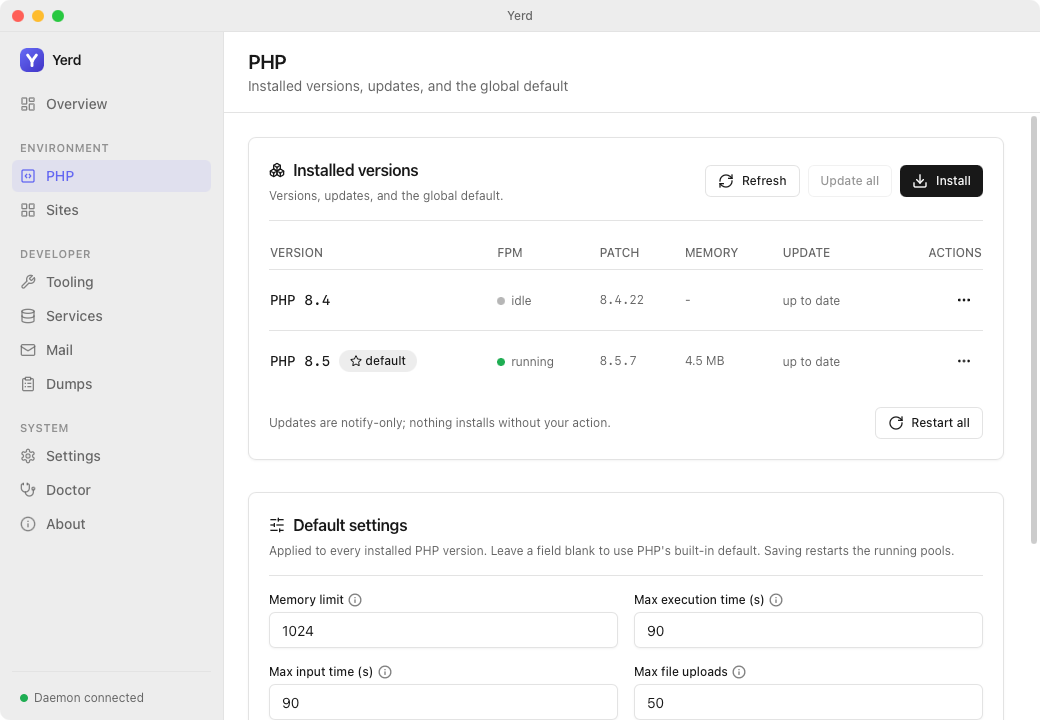
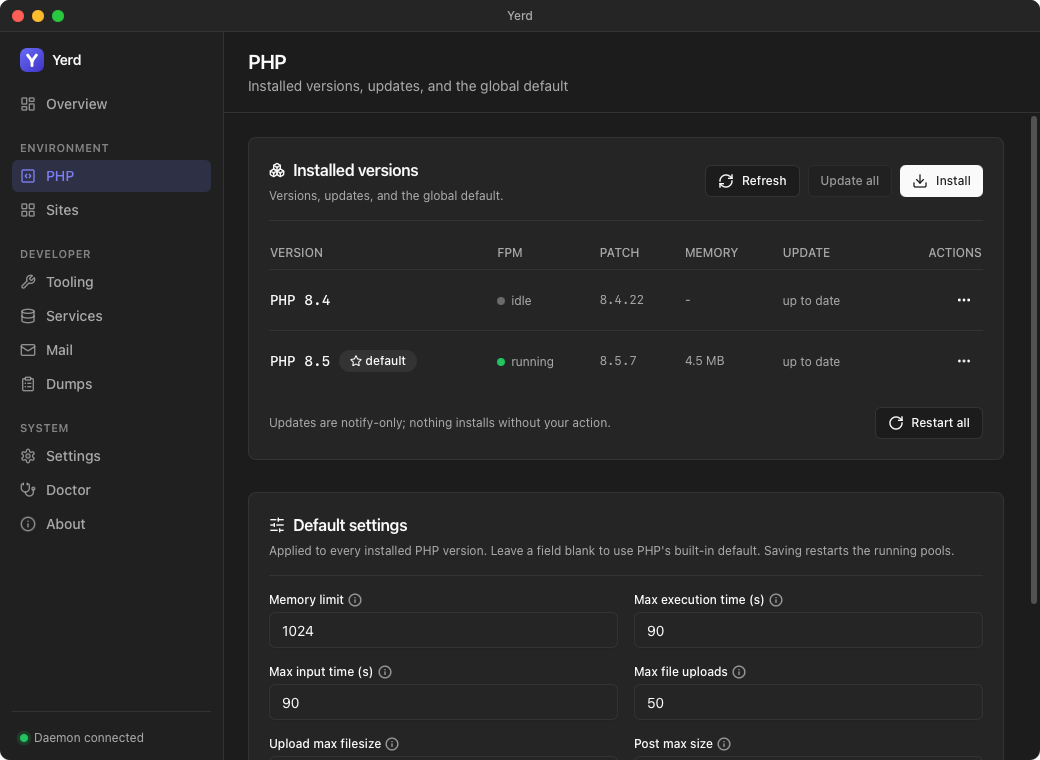
Manages your installed PHP versions:
- A table of installed versions showing live FPM pool state, patch level, pool memory (RSS), and whether an update is available.
- Install opens a picker of installable versions (already-installed ones are hidden). Installs download a prebuilt static build; progress streams live next to the Install button as it happens.
- Refresh re-checks for updates. Update all updates every version with a pending update. Updates are notify-only.
- Each row's
⋯menu offers Restart (only when the pool is running or failed), Update (only when available), Set default (marks it with a star), and Uninstall. Restart all restarts every running pool. - A Default settings card edits the global ini defaults applied to every version:
memory_limit,max_execution_time,max_input_time,max_file_uploads,upload_max_filesize,post_max_size,error_reporting, anddisplay_errors. Leave a field blank to use PHP's built-in default. Saving restarts running pools to apply. - A Per-version configuration card lists your versions down the side, newest first. Picking one scopes everything to that version: a settings form overriding the defaults above (empty fields inherit), its custom extensions, and free-form ini directives. See Per-version configuration.
- The Extensions section of that card registers extra
.soextensions for the selected version (loaded into both FPM and the CLI): Add… browses for the file, optionally names it and toggles Zend extension. Each is load-probed before saving, and any whose file has gone missing is flagged. See Custom extensions.
Sites
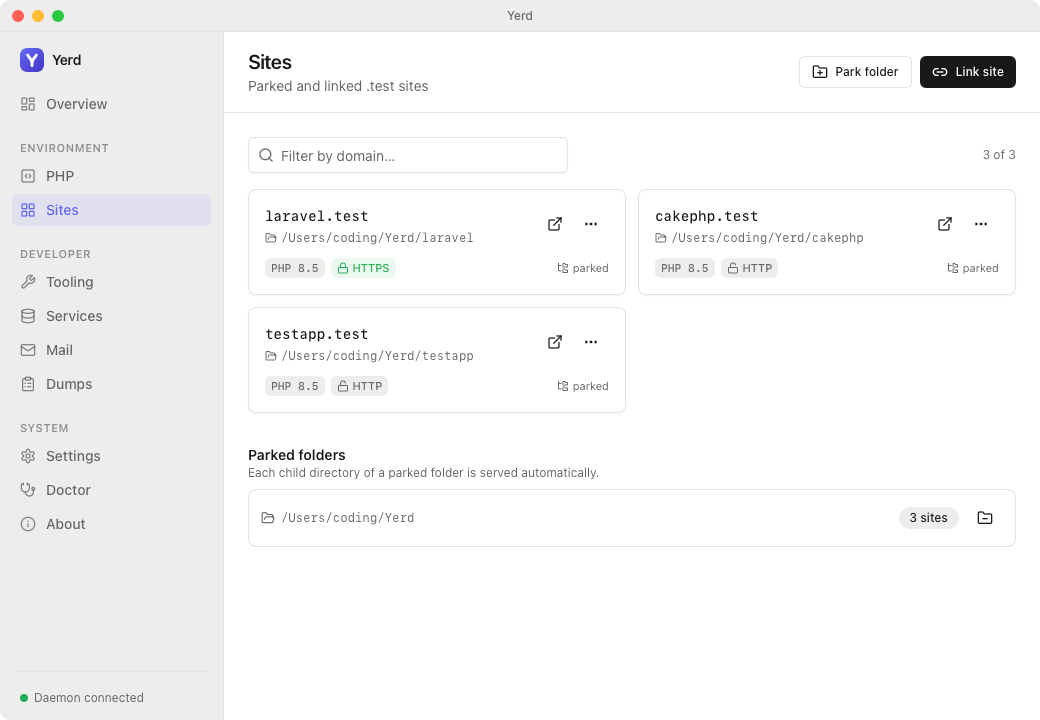
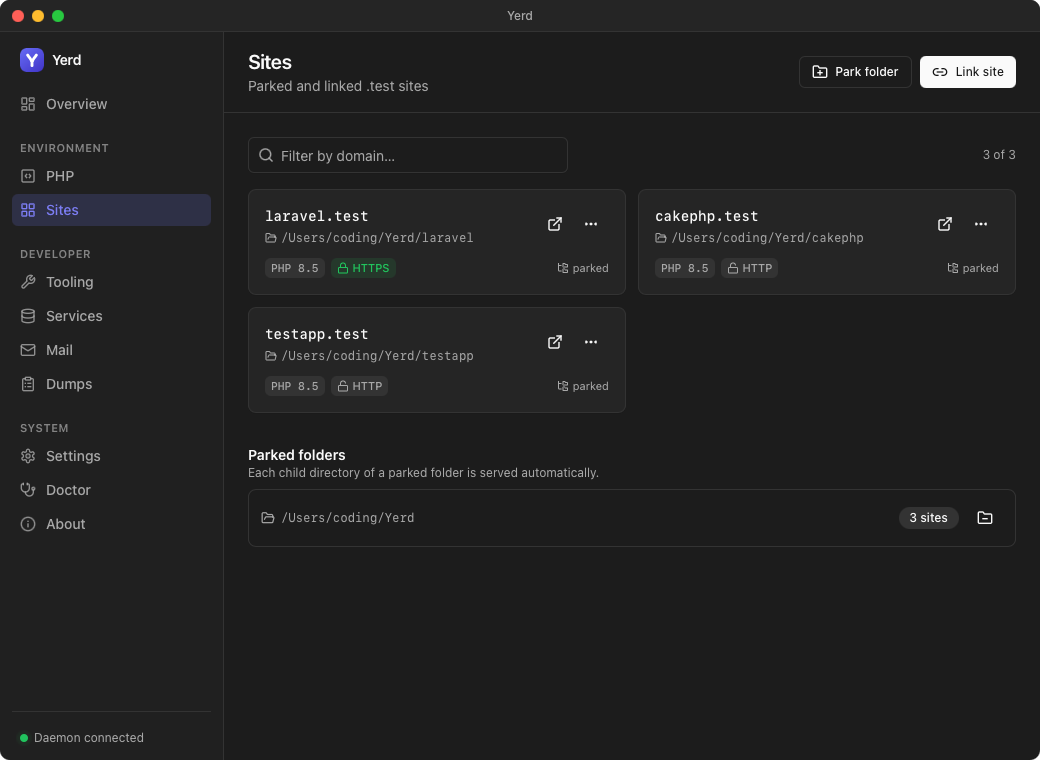
The home base for managing sites. Polls the daemon every 5 seconds while running, so sites added or changed elsewhere show up without a manual refresh. Two cards:
Parked folders. Each parked directory shows a count of the .test sites it produces (one per child directory). Park folder opens a native directory picker; each row's menu offers Reveal folder or Un-park (with confirmation).
Sites. Every parked and linked site is a card: the name.test URL (click to open in your browser), the document root, and badges for kind (parked/linked), PHP version, HTTPS/HTTP, and the served web root when it isn't the project root. A +N badge appears when the site answers extra domains beyond its apex, and an amber warning shows when another site claims this site's apex.
Each card's ⋯ menu offers Edit…, Manage domains… (set the primary domain, add or remove aliases and wildcards), Open in browser, Reveal folder, Share publicly… (jumps to the Share page), and (linked sites only) Unlink. Edit… opens one dialog covering everything about the site: PHP version, web root (blank means auto-detect), the HTTPS toggle, and its group. Parked sites have no destructive action here; remove them by un-parking their folder, or they'd reappear.
Sites can also be organized into named, reorderable groups shown as collapsible sections on this page; see Sites for the full walkthrough.
Untrusted CA banner
If your local CA isn't trusted in the system store, the Sites view shows a banner (browsers will warn on HTTPS sites until fixed). It links to the Doctor page's Environment panel, where one click runs the fix. See HTTPS & Certificates.
Tooling
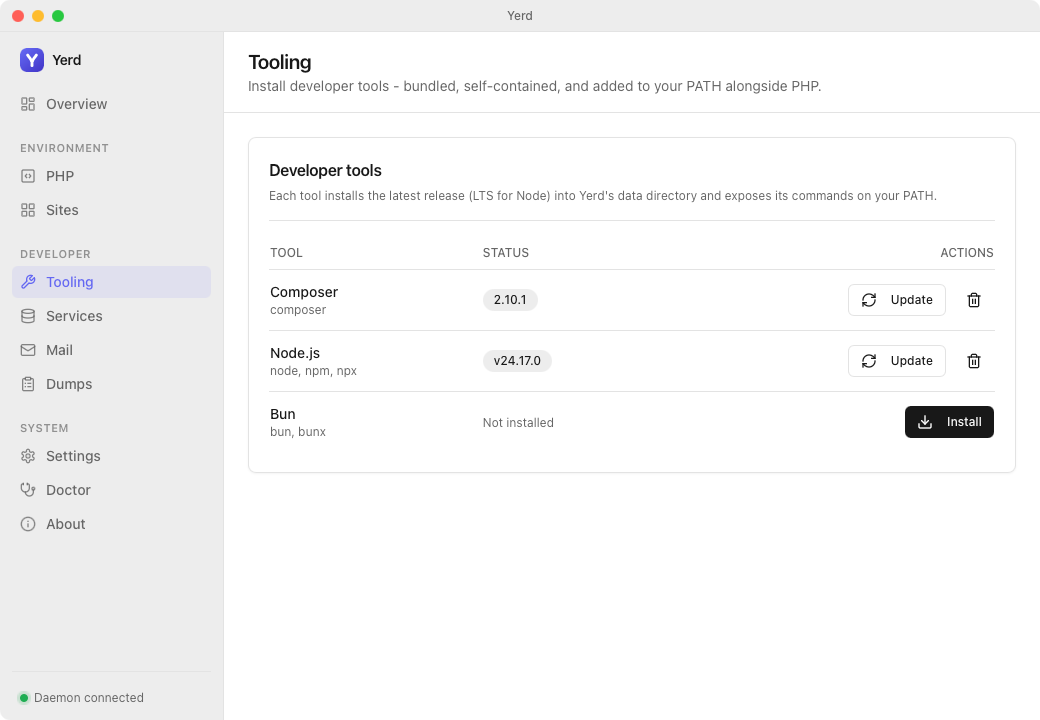
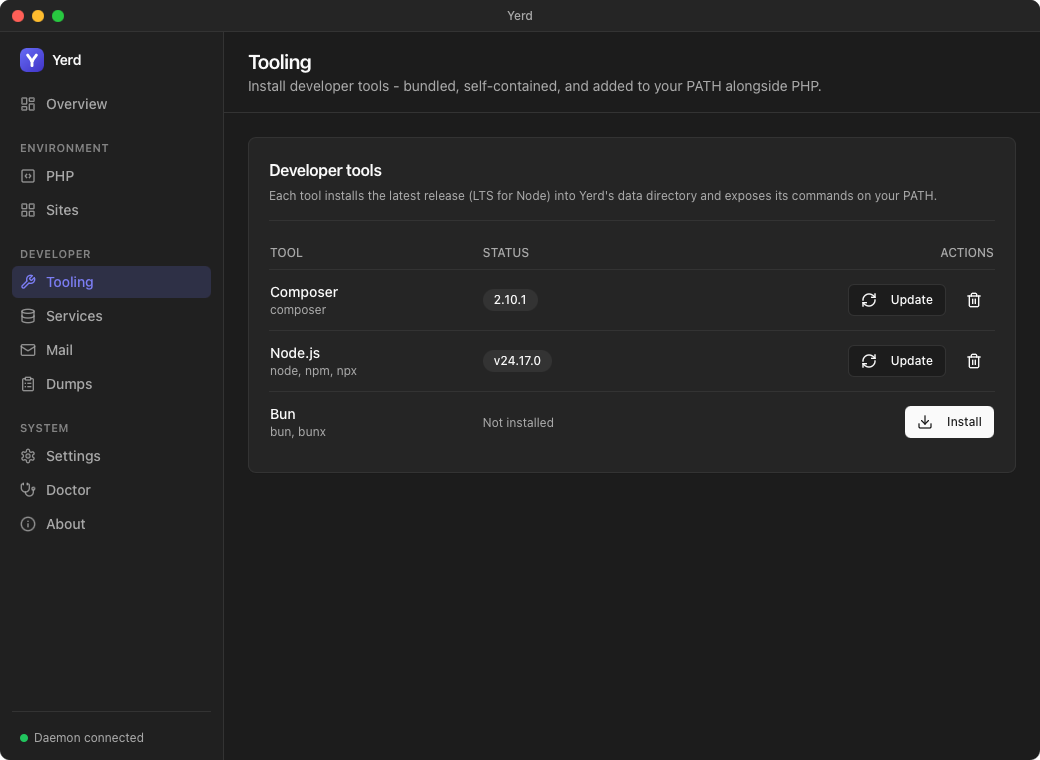
Installs self-contained developer tools - Composer, Node, and Bun - onto your PATH alongside PHP, each managed by Yerd (install / update / uninstall) so they don't collide with system installs. See Tooling.
Services
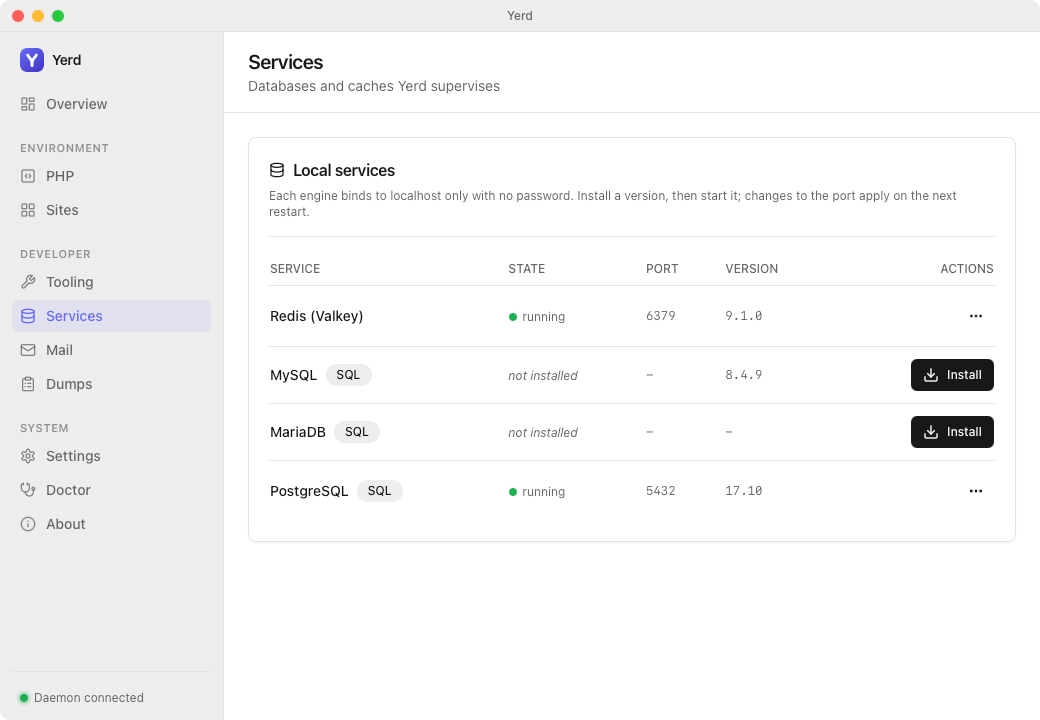
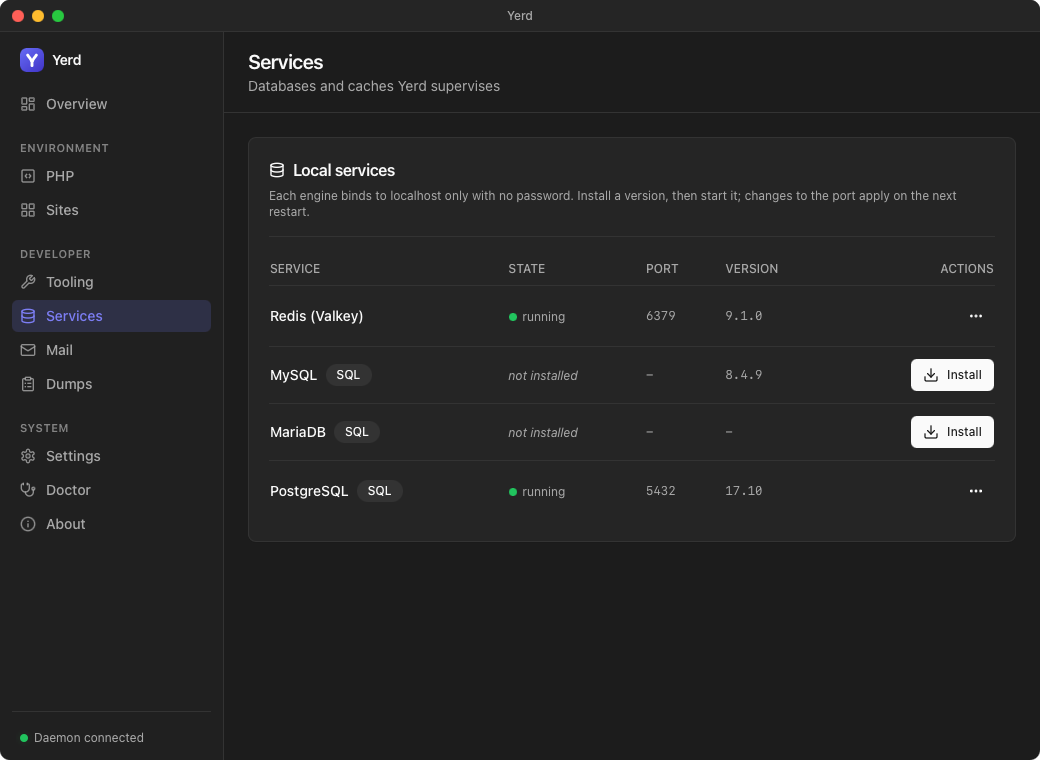
The database and cache engines Yerd supervises - Redis (Valkey), MySQL, MariaDB, and PostgreSQL. Install a version, then Start / Stop / Restart it. Each installed engine's ⋯ menu also offers Configuration (copy the Laravel .env for that engine - with a database picker that pre-fills DB_DATABASE for SQL engines), Edit port, View logs, Manage databases (create / drop / back up / restore, SQL engines only), Change version, and Uninstall. The daemon auto-starts every installed engine on boot. See Services & Databases.
Mail
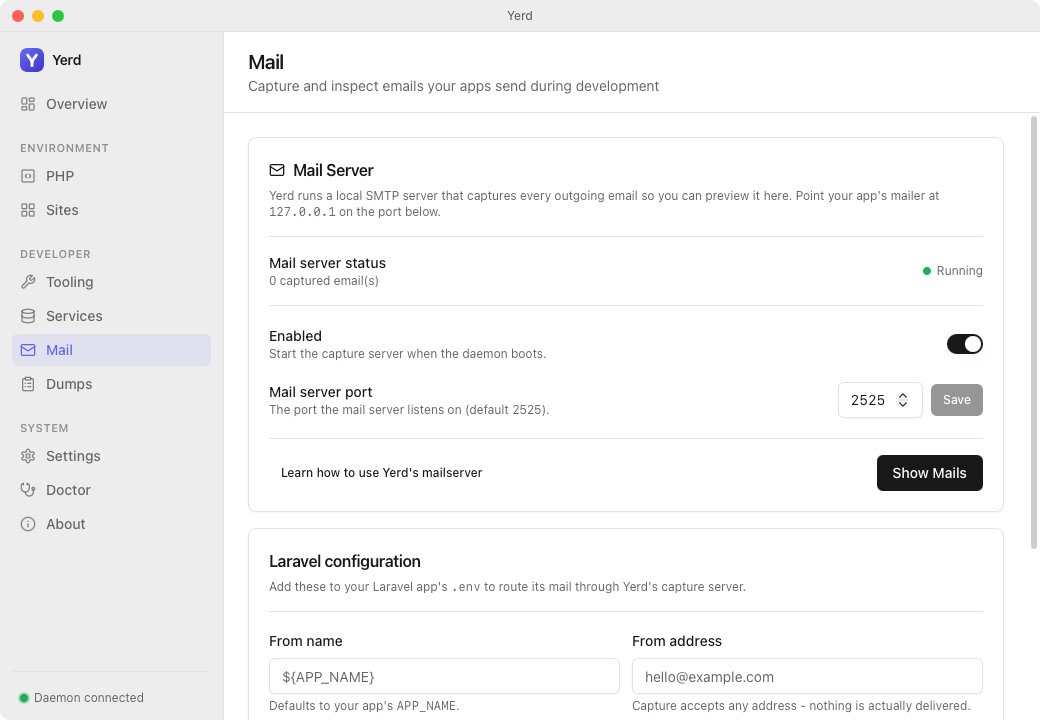
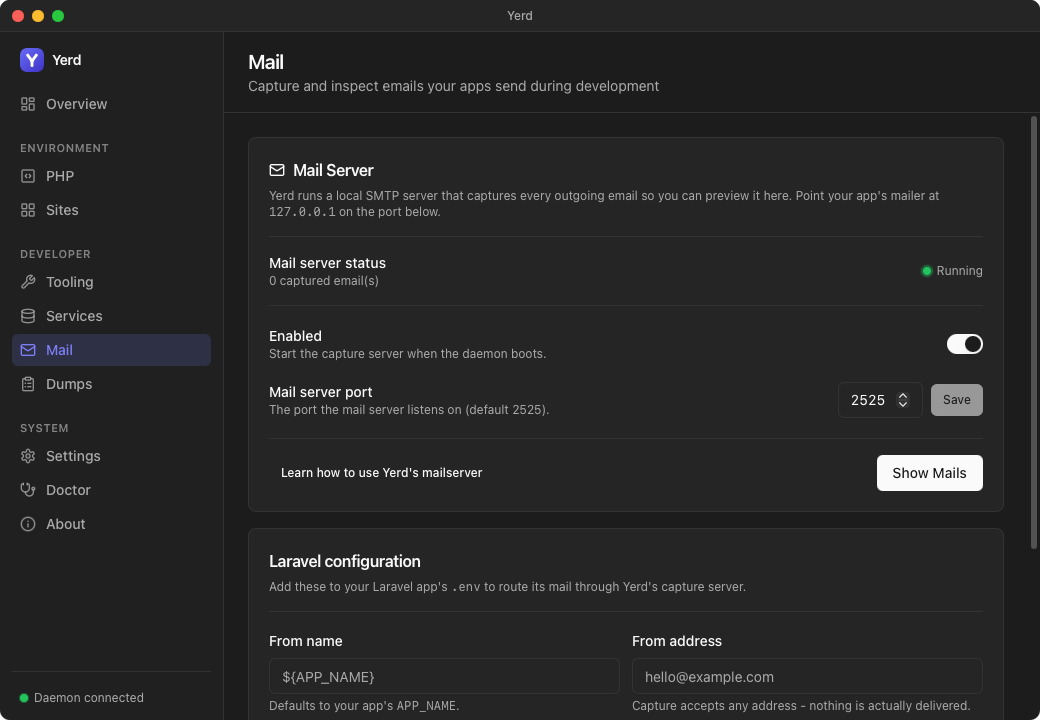
The built-in SMTP mail capture server - point your app's mailer at 127.0.0.1 on the shown port and every outgoing email is captured for preview instead of being sent. Toggle capture, set the port, and open the separate Mails viewer with Show Mails. A Laravel configuration card emits the .env mail keys (MAIL_HOST, MAIL_PORT, …) to paste into your app, with editable From name/address. Captured mail is tracked read/unread: the sidebar Mail item shows an unread-count pill (click it to jump straight to the viewer), and opening a message marks it read. See Mail Capture.
Dumps
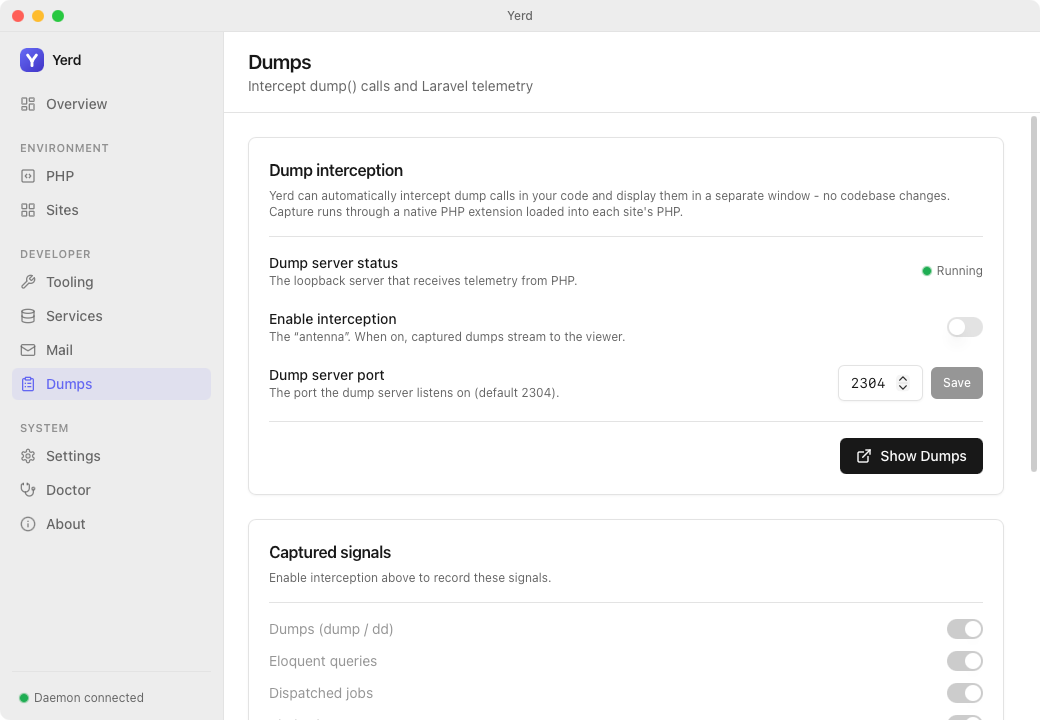
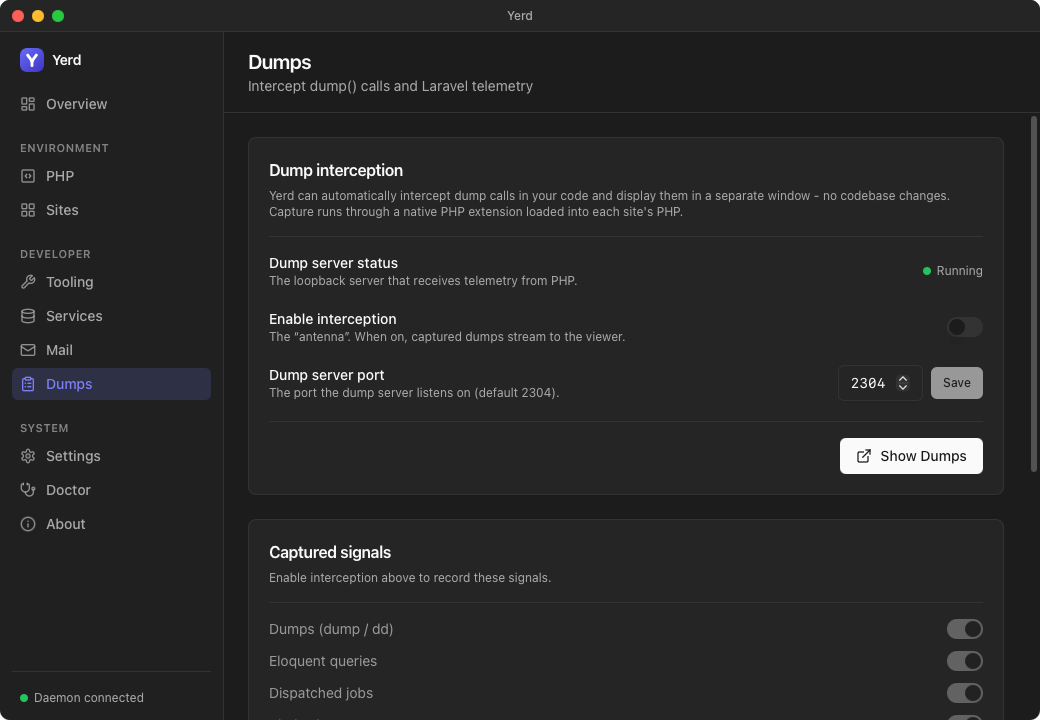
Laravel telemetry interception - dump()/dd() plus queries, jobs, views, requests, logs, cache, and outgoing HTTP - streamed to a separate viewer window with no code changes, captured by a per-version PHP extension. Enable interception, pick which signals to record, set the port, and open the viewer with Show Dumps. See Laravel ▸ Dumps.
Share
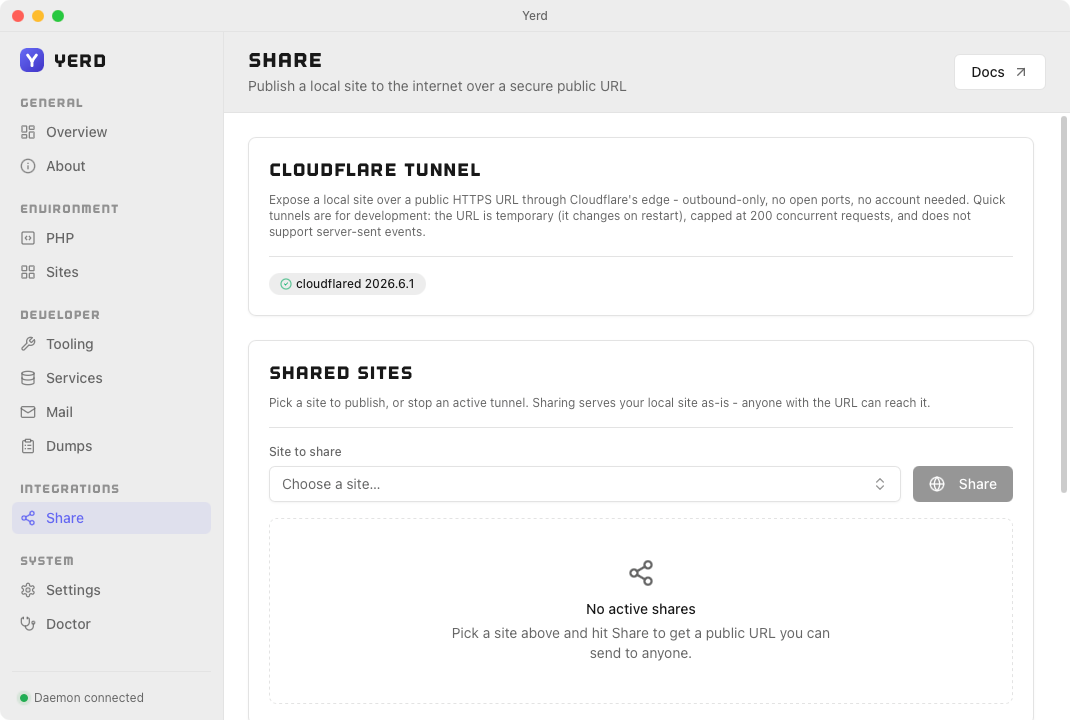
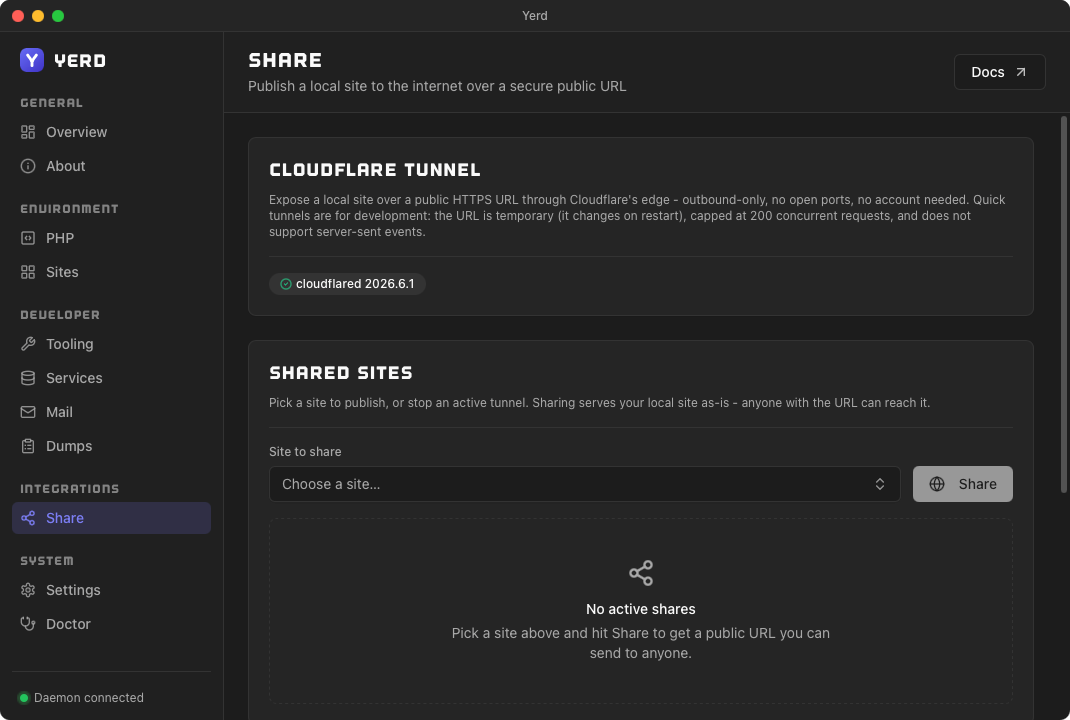
Publishes a local site to the public internet over Cloudflare Tunnel. A Cloudflare Tunnel card shows the detected cloudflared version; a Shared sites card picks a site and opens a Quick Tunnel with one click, alongside a live table of active tunnels. A separate Named tunnels card walks through connecting a Cloudflare account and exposing sites on your own domain. See Sharing Sites.
Doctor
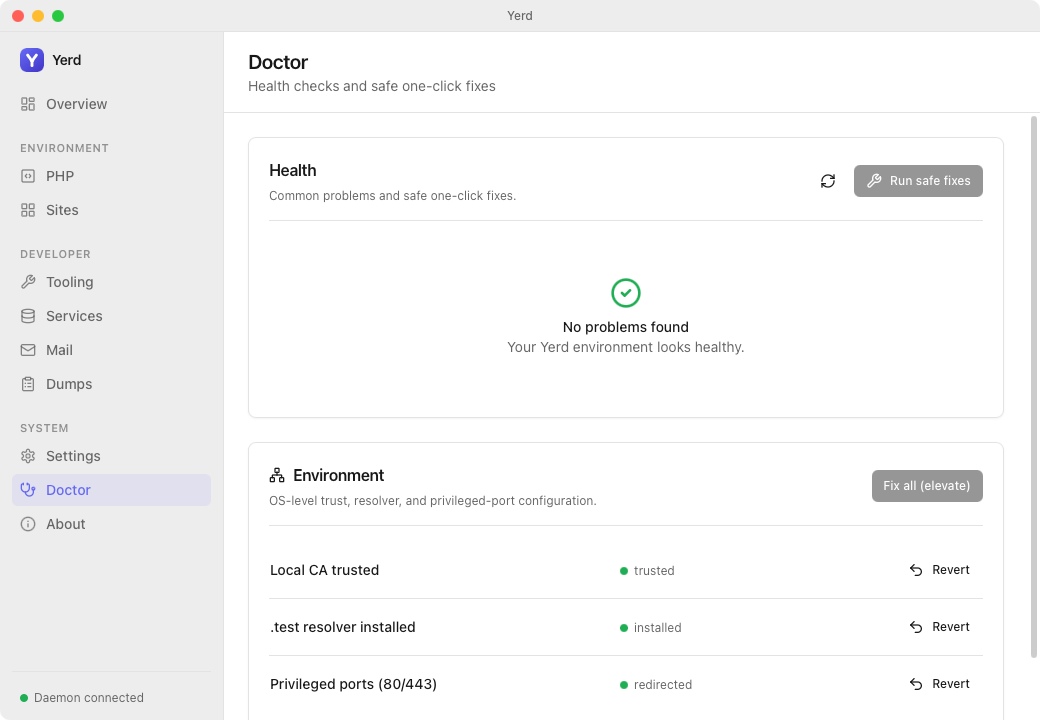
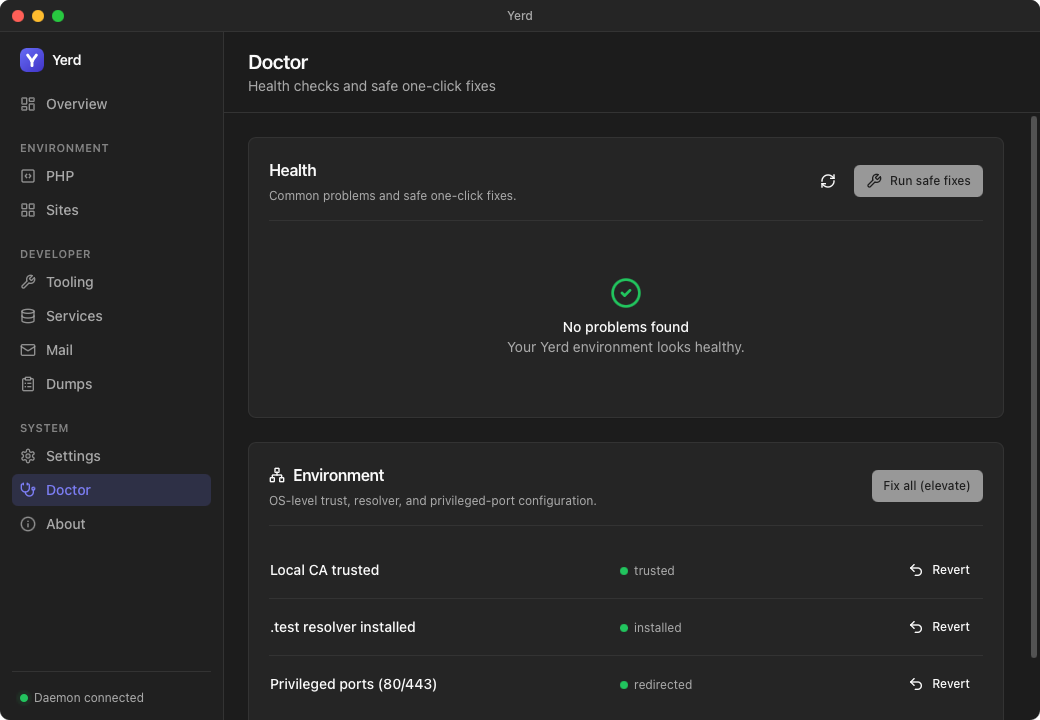
Mirrors yerd doctor:
- Health. Lists problems by severity (Healthy / Warning / Problem) with a copyable remedy command. Run safe fixes applies the safe one-click fixes; Re-check re-runs diagnostics. A clean machine shows an "all clear" panel.
- Environment. OS-level state: Local CA trusted,
.testresolver installed, and Privileged ports (80/443). A Fix (elevate) button runs the privileged action where a row isn't configured; once a row is configured, an Unelevate button reverts it - behind an in-app confirm dialog and the OS prompt. Unelevating the.testresolver restores your previous resolver on macOS; reverting privileged ports is macOS-only (Linuxsetcaphas no clean reverse, so no button is shown there).
"Fix" actions never run the GUI as root
The Fix buttons run the audited yerd elevate helper under an OS prompt; the GUI never runs elevated. On Linux this uses pkexec, on macOS an osascript … with administrator privileges prompt. You may be asked for your password. See Elevation & Privileges.
About
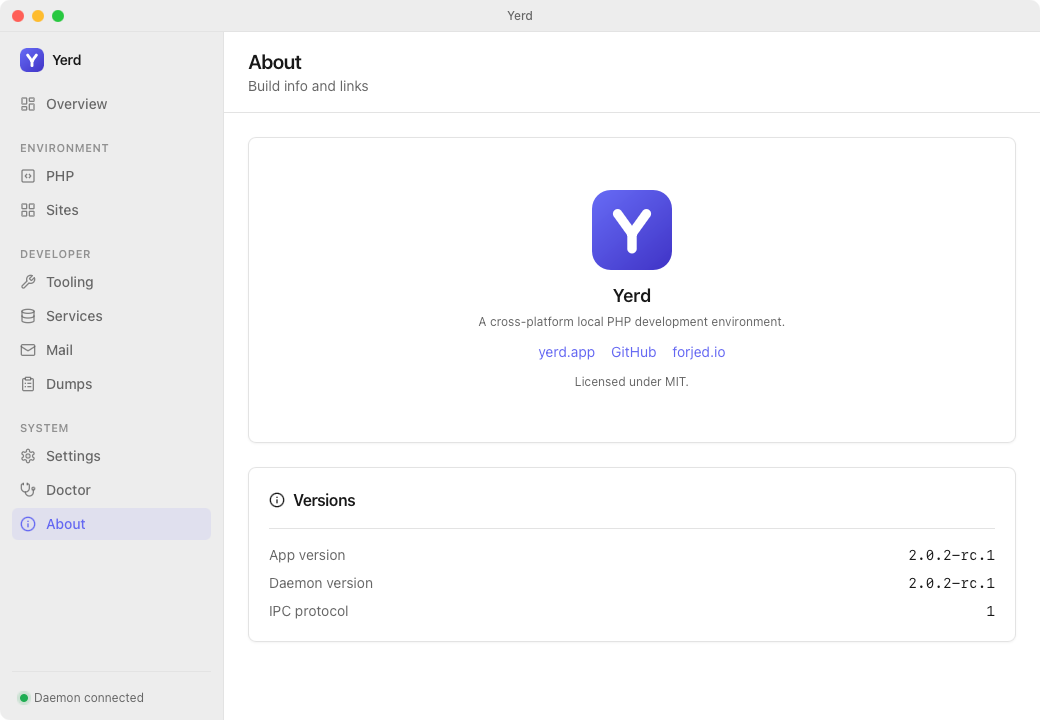
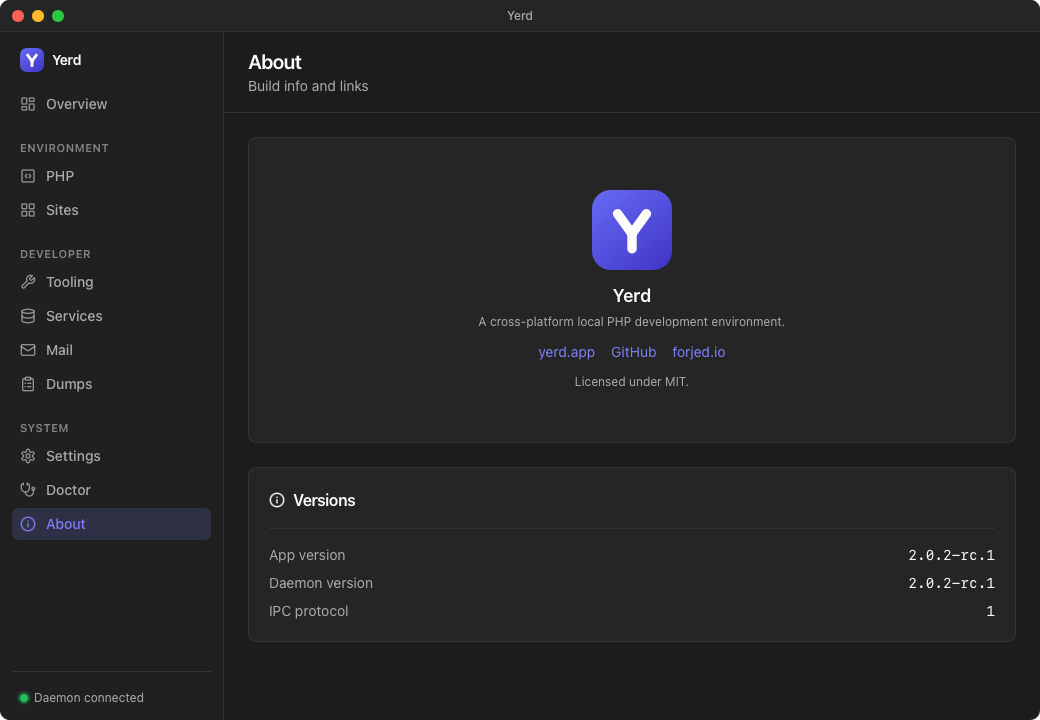
Shows the app, daemon, and negotiated IPC protocol versions, plus your local environment: the TLD (.test), the DNS responder address, and the local CA certificate path and fingerprint (both copyable, with reveal-in-finder). It also links to the project repository.
- Updates. A release-channel selector (Stable / Edge pre-releases), a Check now button, and the last-checked status (current version, latest stable/edge, and how long ago it checked). When an update is available, an Apply update button downloads, verifies, and installs it, restarting the app.
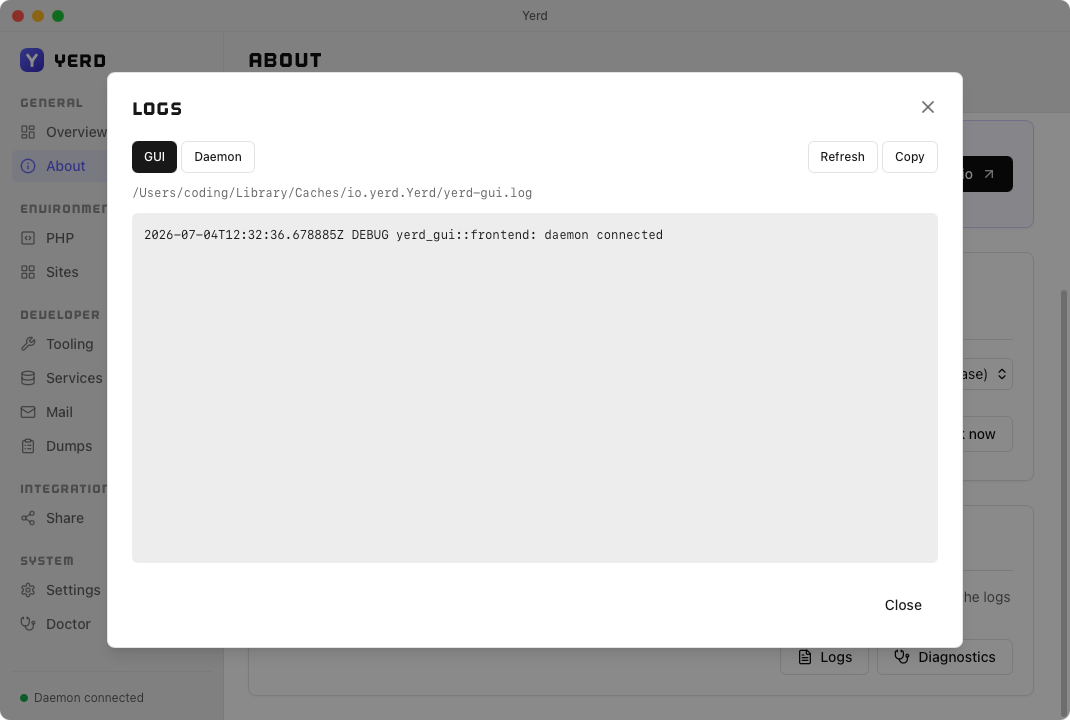
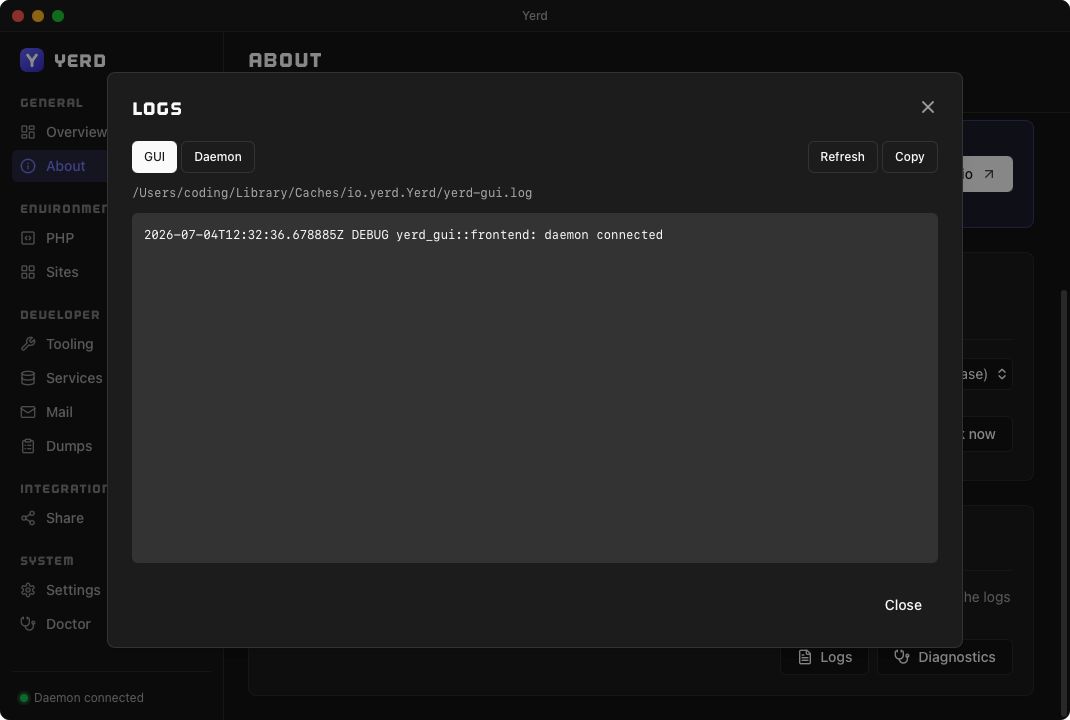
- Troubleshooting. Logs opens a dialog tailing the GUI's own session log (
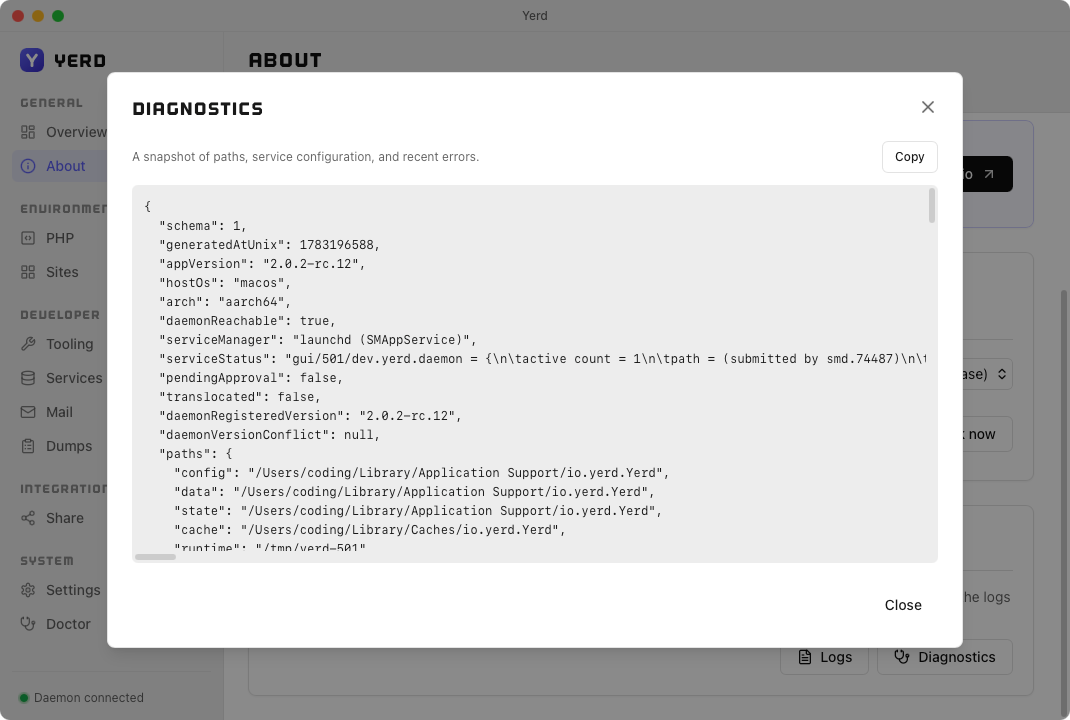
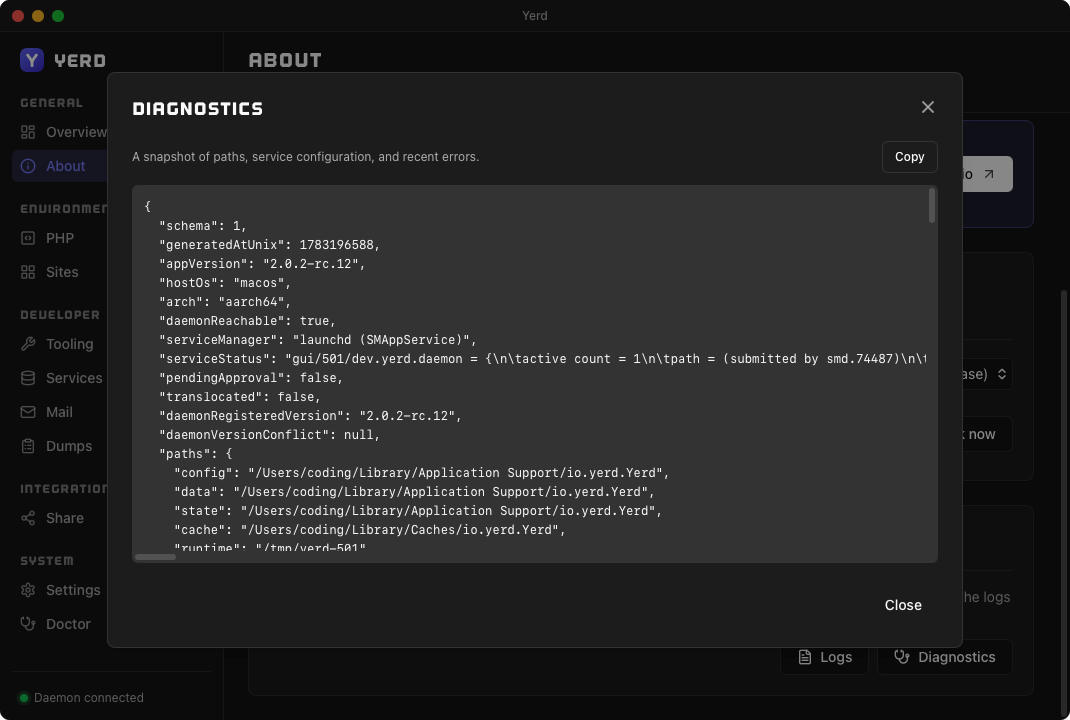
yerd-gui.log) alongside the daemon log, tab-switchable, with a copy button. Diagnostics gathers a shareable text snapshot of app/daemon state with its own copy button - useful when reporting a problem.
Keyboard shortcuts
The window is fully keyboard-driven. Shortcuts follow each platform's convention: where macOS uses Cmd (⌘), Linux uses Ctrl with the same letter. Two of them are all you need to remember - the command palette (⌘K / Ctrl+K) jumps to any page or runs any action by typing, and the shortcuts overlay (⌘/ / Ctrl+/) lists everything below in the app itself.
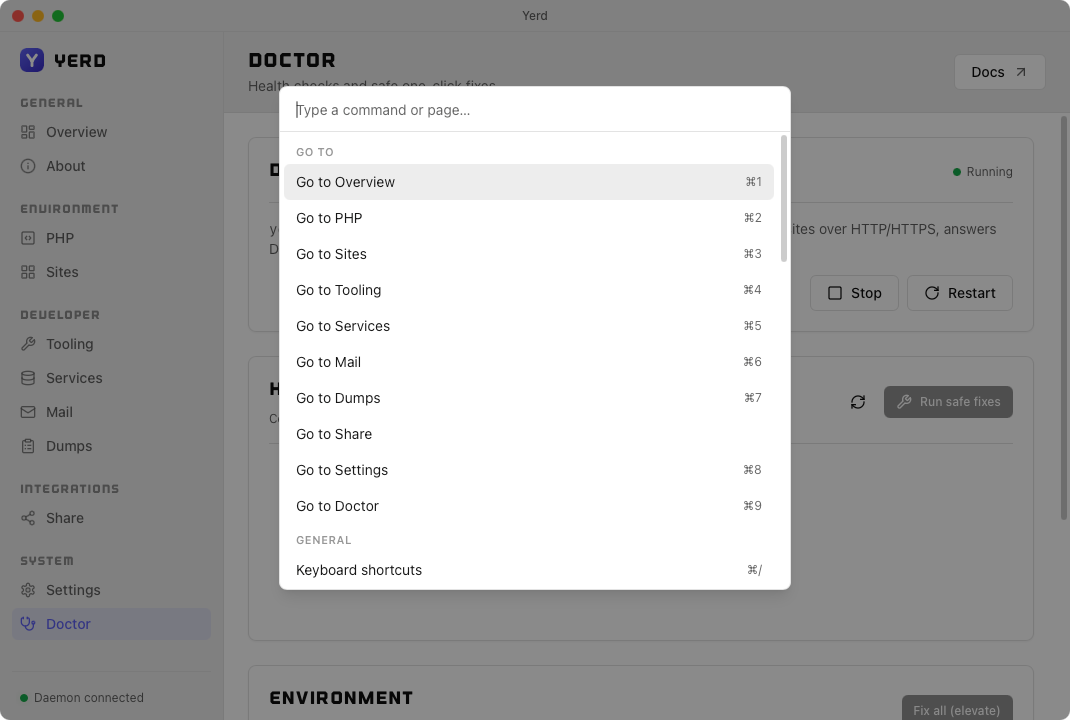
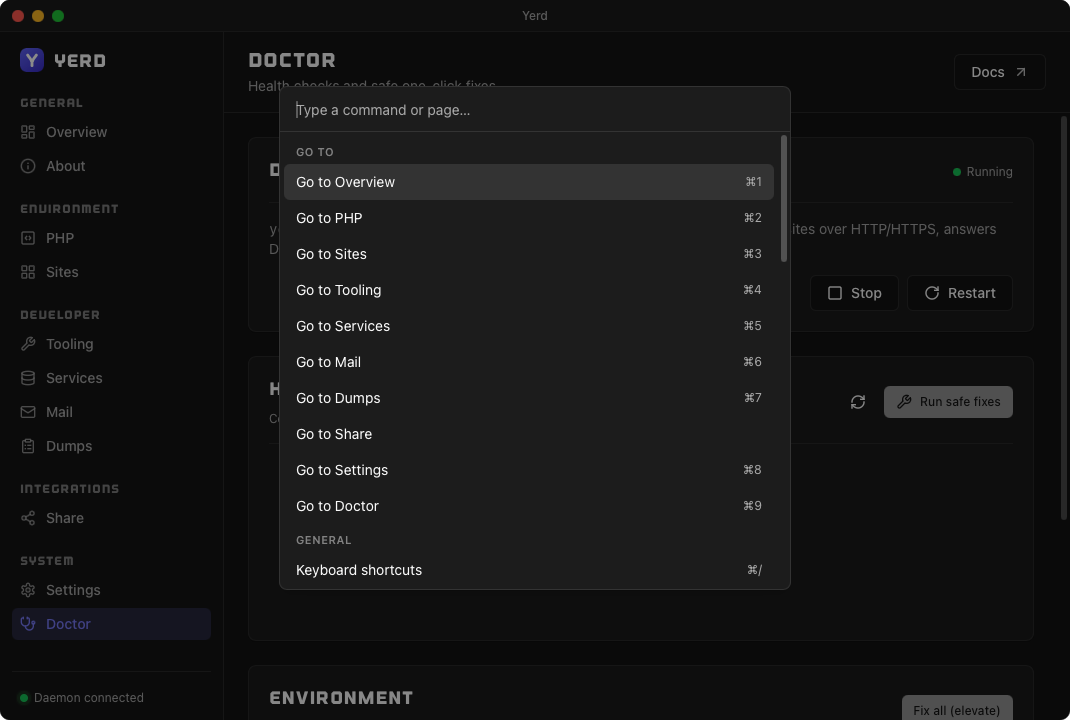
The command palette also lists your sites at the bottom (grouped by domain): Open a site in the browser, or Secure / Unsecure it (toggle HTTPS), without leaving the keyboard.
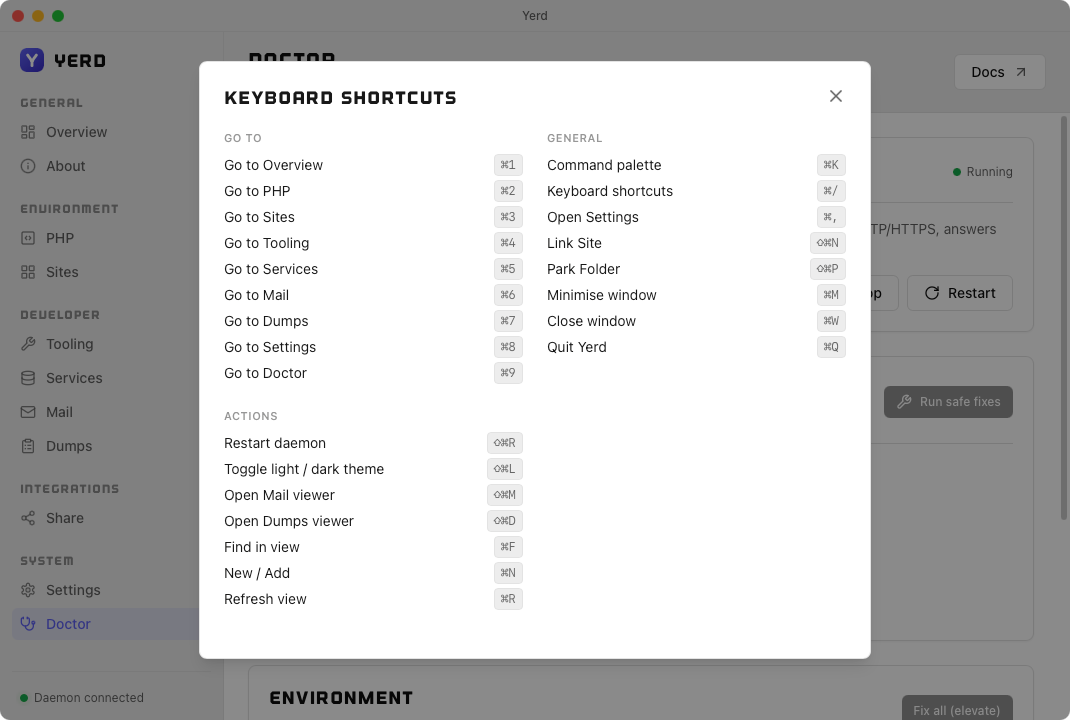
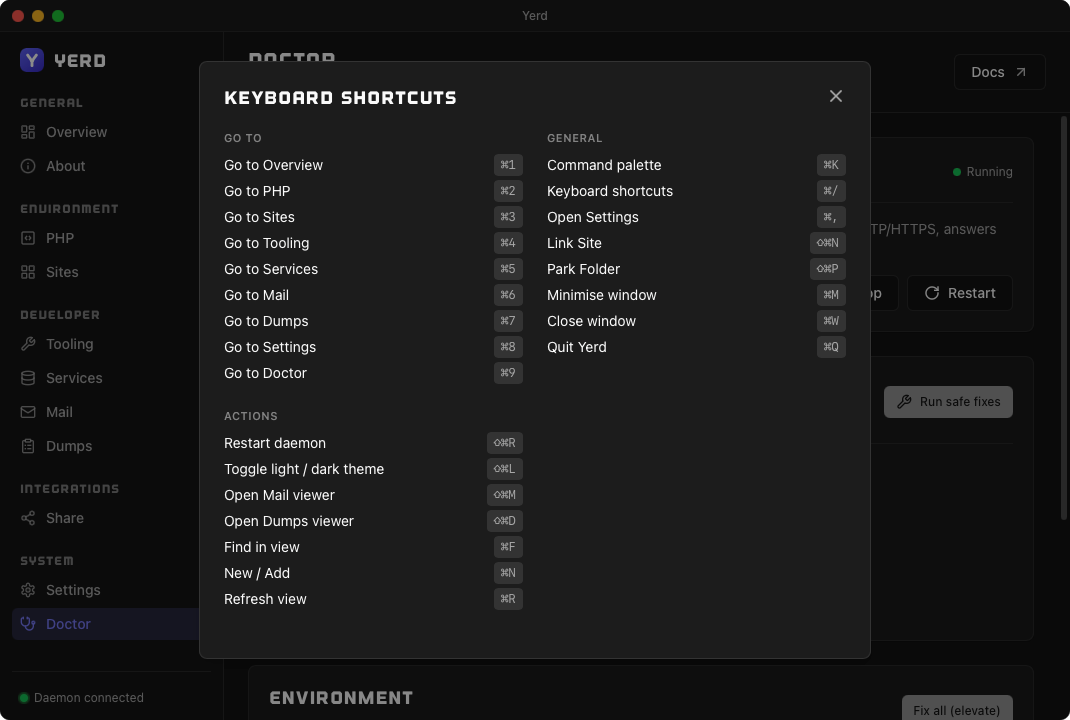
| Action | macOS | Linux | What it does |
|---|---|---|---|
| Command palette | ⌘K | Ctrl+K | Search-and-run overlay for every page and action |
| Shortcuts | ⌘/ | Ctrl+/ | Show this list inside the app |
| Go to a page | ⌘1 … ⌘9 | Ctrl+1 … Ctrl+9 | Jump straight to a sidebar page (see order below) |
| Settings | ⌘, | Ctrl+, | Open the Settings page |
| Find | ⌘F | Ctrl+F | Focus the page's filter box (Sites, Dumps) |
| New | ⌘N | Ctrl+N | Start the page's primary action (Add site, Install PHP) |
| Refresh | ⌘R | Ctrl+R | Re-fetch the current page's data |
| Restart daemon | ⇧⌘R | Ctrl+Shift+R | Restart yerdd |
| Toggle theme | ⇧⌘L | Ctrl+Shift+L | Switch light / dark (applies to every window) |
| Open Mail viewer | ⇧⌘M | Ctrl+Shift+M | Open the standalone Mail capture window |
| Open Dumps viewer | ⇧⌘D | Ctrl+Shift+D | Open the standalone Dumps telemetry window |
| Link Site | ⇧⌘N | Ctrl+Shift+N | Open the Link-site dialog on the Sites page |
| Park Folder | ⇧⌘P | Ctrl+Shift+P | Open the park-folder picker on the Sites page |
| Cycle Dumps tabs | ⌃⇥ / ⌃⇧⇥ | Ctrl+Tab / Ctrl+Shift+Tab | Move between categories in the Dumps viewer |
| Close window | ⌘W | Ctrl+W | Hide the window to the tray |
| Close dialog | Esc | Esc | Dismiss the open modal |
⌘1…⌘9 follow the sidebar order: 1 Overview, 2 PHP, 3 Sites, 4 Tooling, 5 Services, 6 Mail, 7 Dumps, 8 Settings, 9 Doctor.
Quitting the app
There's no Quit shortcut: closing the window (⌘W / Ctrl+W) hides it to the tray and leaves the daemon running, by design. Quit from the tray menu, or on macOS with the standard ⌘Q.
Related
- Getting Started - install Yerd and walk through the first-run onboarding journey
- The Daemon - what
yerddis and how it runs - Sites · PHP Versions · HTTPS & Certificates - the features the GUI surfaces
- Elevation & Privileges - how "Fix" actions stay root-free
- CLI Reference - the
yerdcommand line, a first-class alternative - Desktop App Internals - the Tauri/Vue architecture for contributors
- Source on GitHub -
apps/yerd-gui